
Manage Terraform settings
Settings → Terraform Settings controls organization runner defaults and optional project overrides. It also shows plan-managed capacity and protected workspace state access. Only the Runner options shown as editable are persisted from this page.
- Typical time
- 10–15 minutes
- You need
- Settings permission and a project for overrides or state access
- Outcome
- Saved runner defaults or a short-lived state export
Step 1: Choose organization defaults or project override
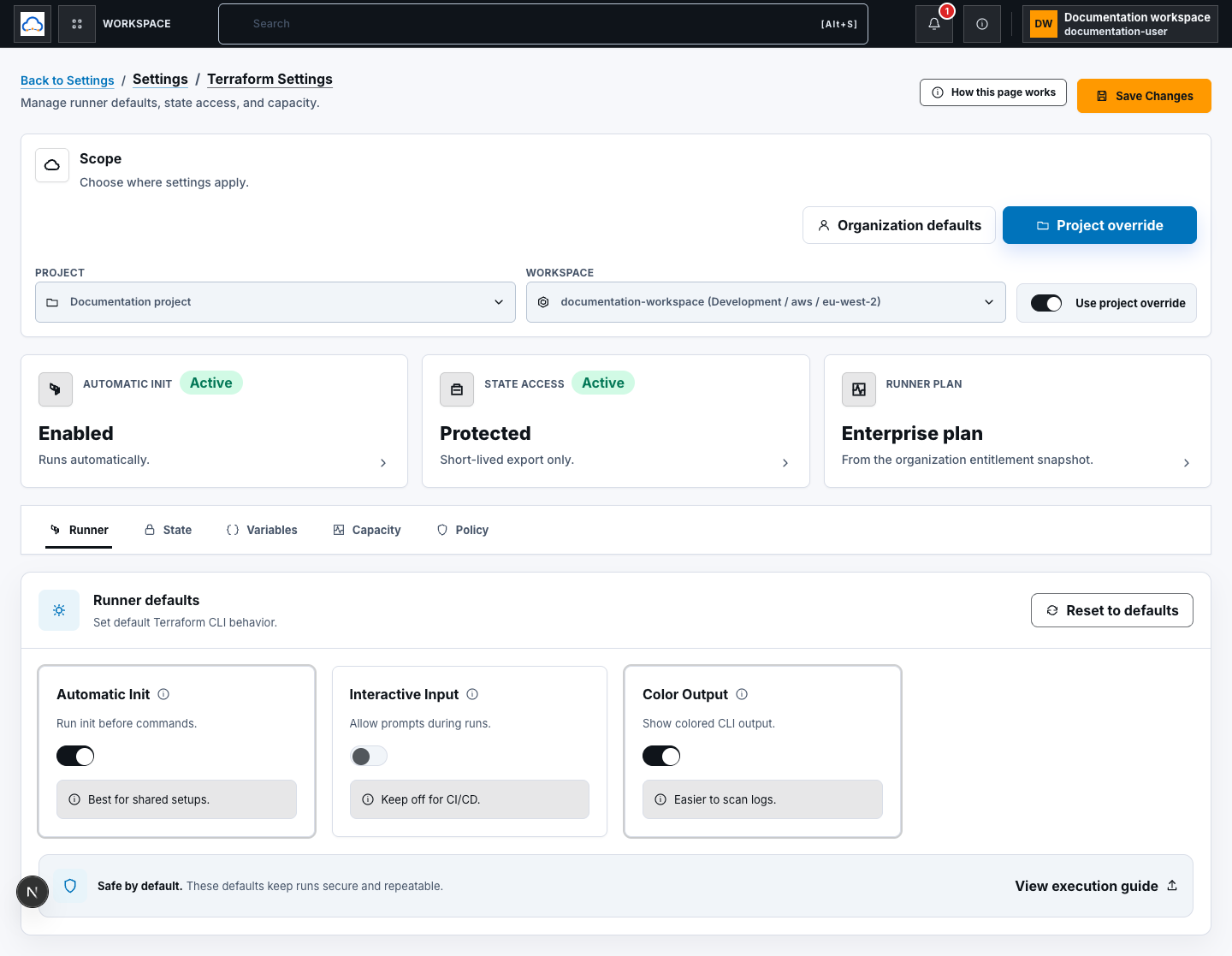
Section titled “Step 1: Choose organization defaults or project override”Open Settings → Terraform Settings and choose:
- Organization defaults for the shared baseline; or
- Project override, then select the project and optionally its workspace.
For a project-specific runner configuration, turn on Use project override. When it is off, the project uses the organization Terraform settings.
Step 2: Configure runner defaults
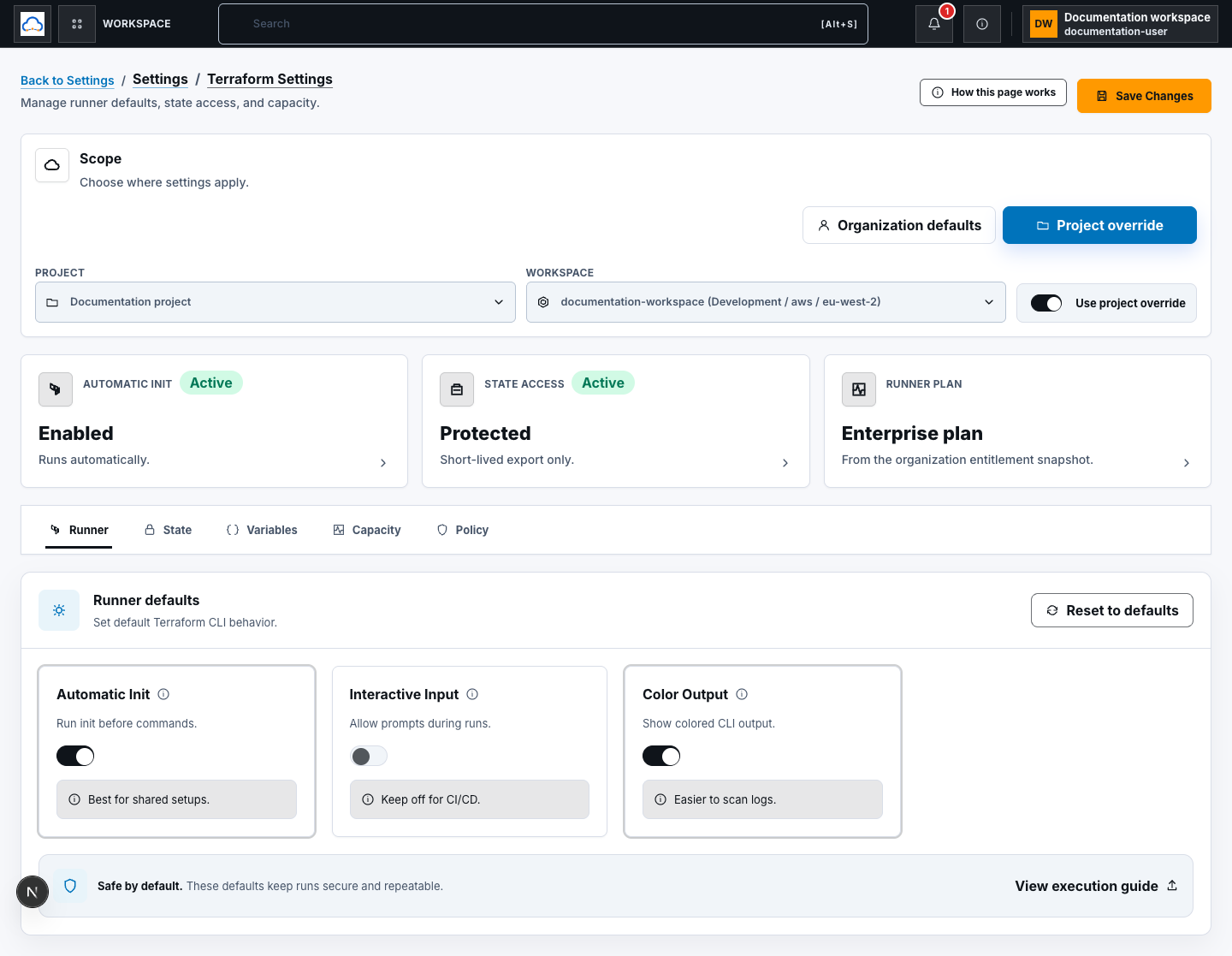
Section titled “Step 2: Configure runner defaults”Open Runner and review:
- Automatic Init — run
terraform initbefore commands; - Interactive Input — allow prompts during runs; keep this off for normal automated delivery; and
- Color Output — include colored CLI output.
Choose Reset to defaults to restore the displayed Runner choices before saving. Reset changes the draft only; choose Save Changes to persist it.
Step 3: Save and verify inheritance
Section titled “Step 3: Save and verify inheritance”Choose Save Changes.
- Organization scope confirms Global Terraform settings saved.
- An enabled project override confirms Project Terraform settings saved.
- Saving with the project override off confirms the project now uses global Terraform settings.
Runner execution resolves the effective project settings at runtime. The save response and reloaded values prove persistence; deployment wiring alone does not prove a later run used them.
Step 4: Review Variables, Capacity, and Policy
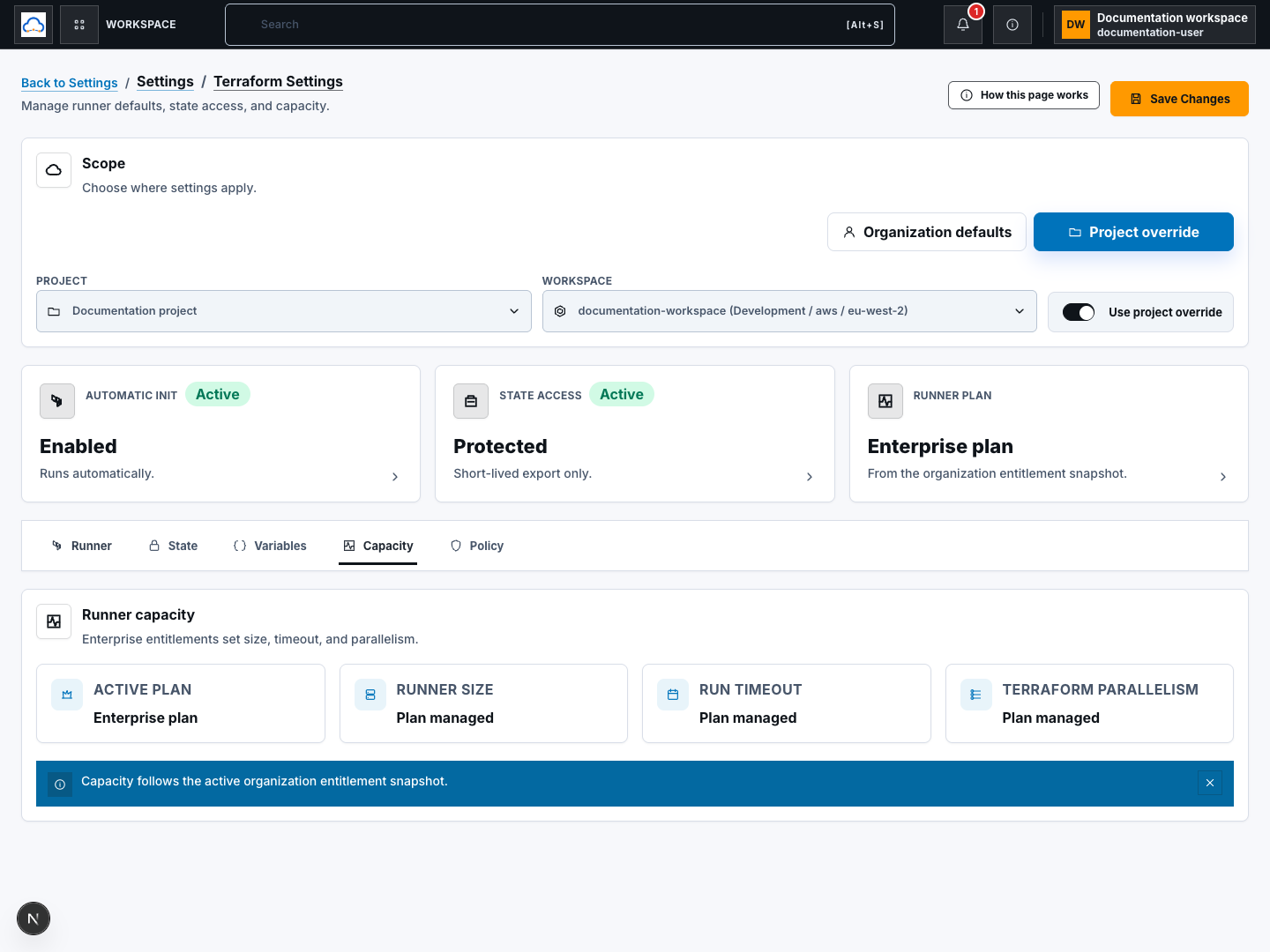
Section titled “Step 4: Review Variables, Capacity, and Policy”Use the other tabs as routing and read-only context:
- Variables points to Environments and variables for organization, project, and workspace values.
- Capacity shows the active billing plan’s runner size, timeout, and Terraform parallelism. These are entitlement-managed, not editable here.
- Policy points to Policy Guardrails, policy packs, and approval gates.
Do not infer higher capacity or weaker policy from a local UI toggle. Billing and governance remain separate enforced boundaries.
Step 5: Create a protected state download
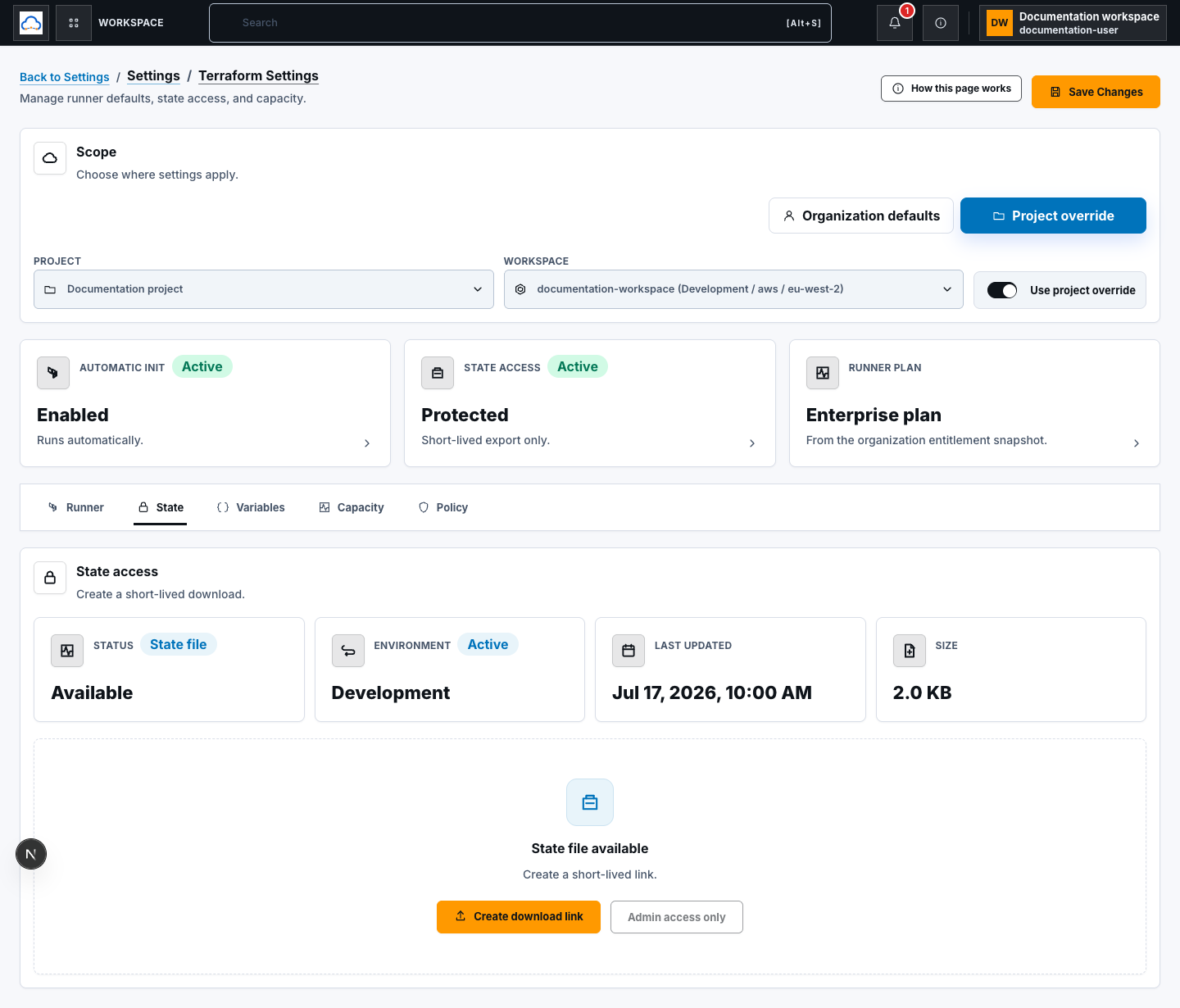
Section titled “Step 5: Create a protected state download”Open State, select a project and workspace, and review status, environment,
last updated time, and size. If a state file exists and you have
terraform_state:export permission or the authorized project role:
- choose Create download link;
- wait while ScrinCloud creates a short-lived URL;
- store and handle the downloaded state as sensitive data; and
- remove local copies when no longer needed.
The link is temporary. Never paste it into tickets, chat, logs, or documentation.
Check your result
Section titled “Check your result”Reload the same scope and confirm the saved Runner values and override state. For state access, verify only that the intended authorized download completed; do not retain or publish its URL. For runtime behavior, use a reviewed Terraform run tied to the expected project revision.
Common blockers
Section titled “Common blockers”Save Changes does not persist a project setting
Section titled “Save Changes does not persist a project setting”Confirm a project is selected and Use project override is on. If it is off, the project intentionally inherits organization defaults.
Capacity controls are read only
Section titled “Capacity controls are read only”Runner capacity comes from the active billing entitlement snapshot. Review Billing rather than trying to edit these values here.
Create download link is disabled
Section titled “Create download link is disabled”Select a project and workspace, confirm a state file exists, and verify your state-export permission. A user without the authorized project role must not work around the restriction.