
Policy packs
Policy packs group approved policies so teams can apply a consistent baseline to projects without rebuilding the selection for every workspace.
- Typical time
- 20–40 minutes
- You need
- Policy-management access, eligible projects, and fresh security verification for protected changes
- Outcome
- A traceable pack and project-assignment history
Step 1: Browse the Pack Library
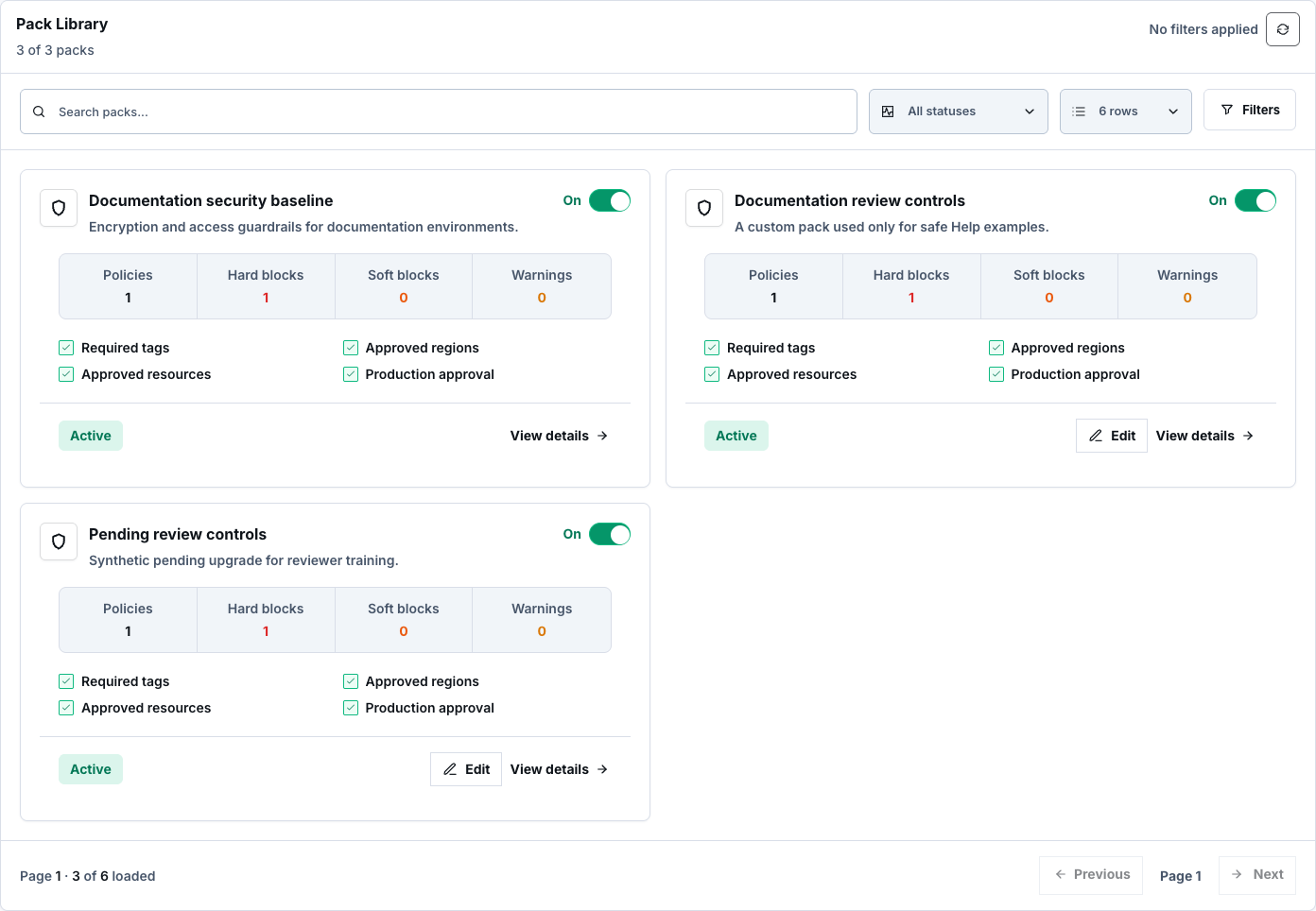
Section titled “Step 1: Browse the Pack Library”Open Governance → Policy Guardrails → Policy Packs. On Library, search and filter packs, choose a page size, then use Refresh, Previous, and Next. Open a card to view details.
Use the pack toggle to enable or disable it. This protected mutation requires fresh security verification. Built-in packs can be inspected; only custom packs offer Edit pack.
Step 2: Create a custom pack
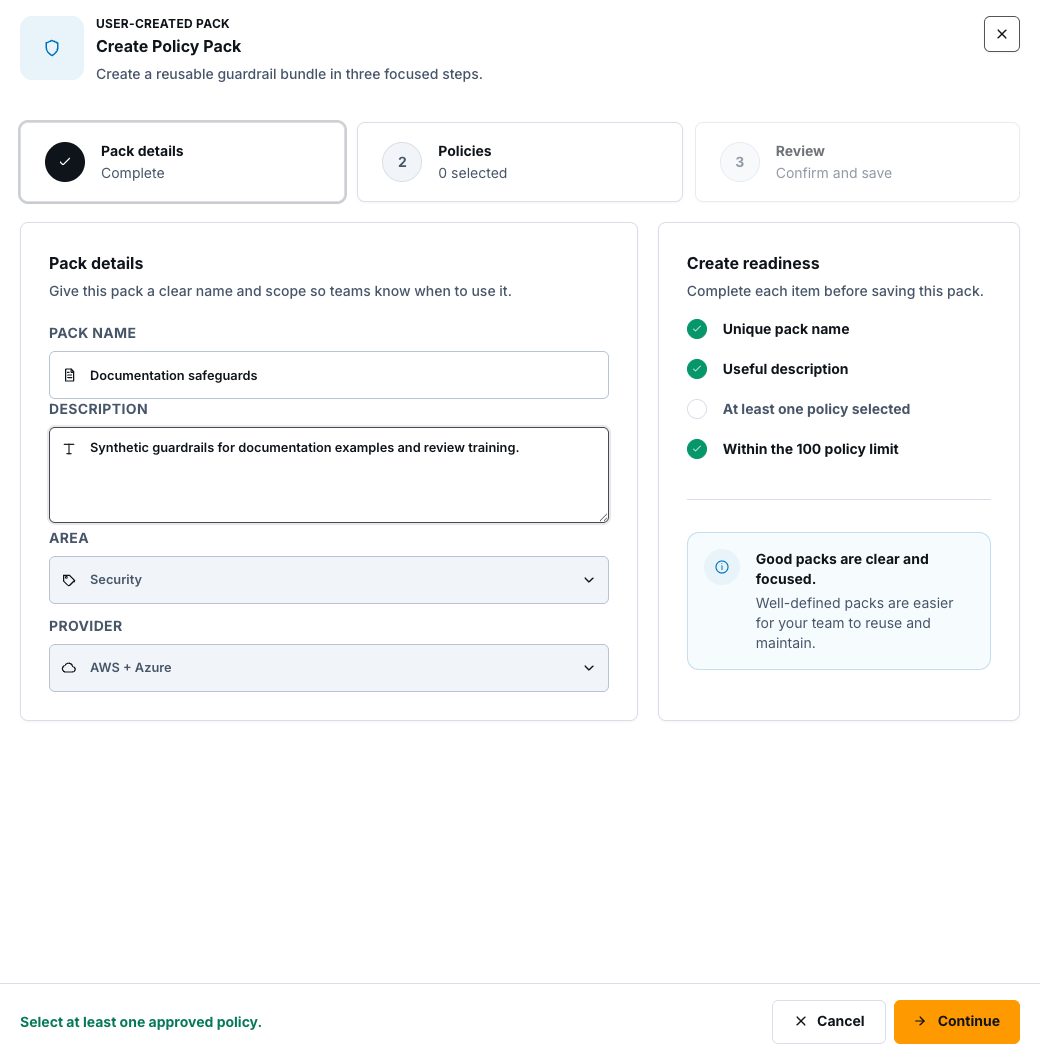
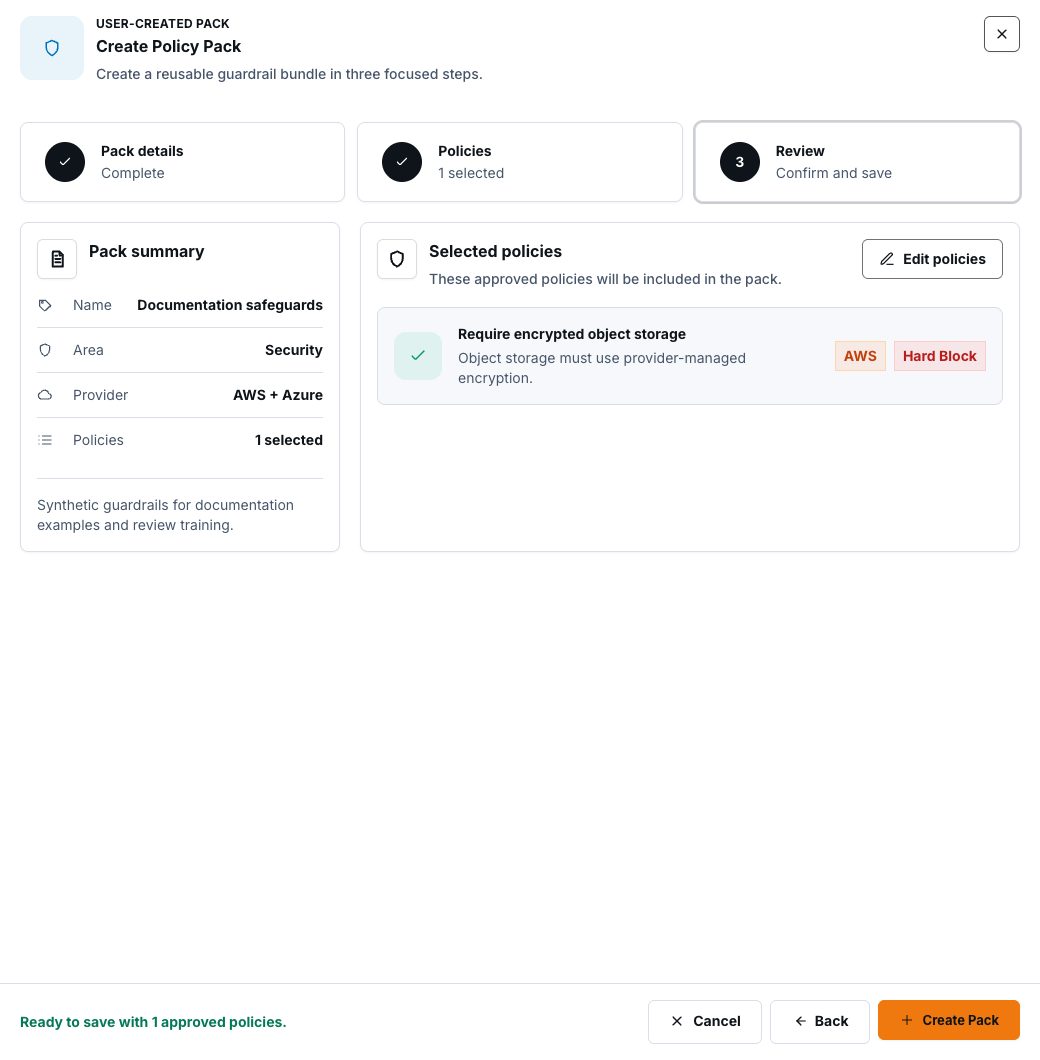
Section titled “Step 2: Create a custom pack”Select New pack. In Details, enter a unique name and useful description, then choose the control area and provider. In Policies, search and filter the approved catalog, optionally show selected items only, and choose between 1 and 100 policies. Review the summary and select Create Pack.
Step 3: Edit a custom pack
Section titled “Step 3: Edit a custom pack”Open a custom pack, select Edit pack, change its details or approved-policy selection, review the result, and select Save Pack. Built-in packs do not offer this action. Recheck affected project assignments after a pack change.
Step 4: Preview project assignments
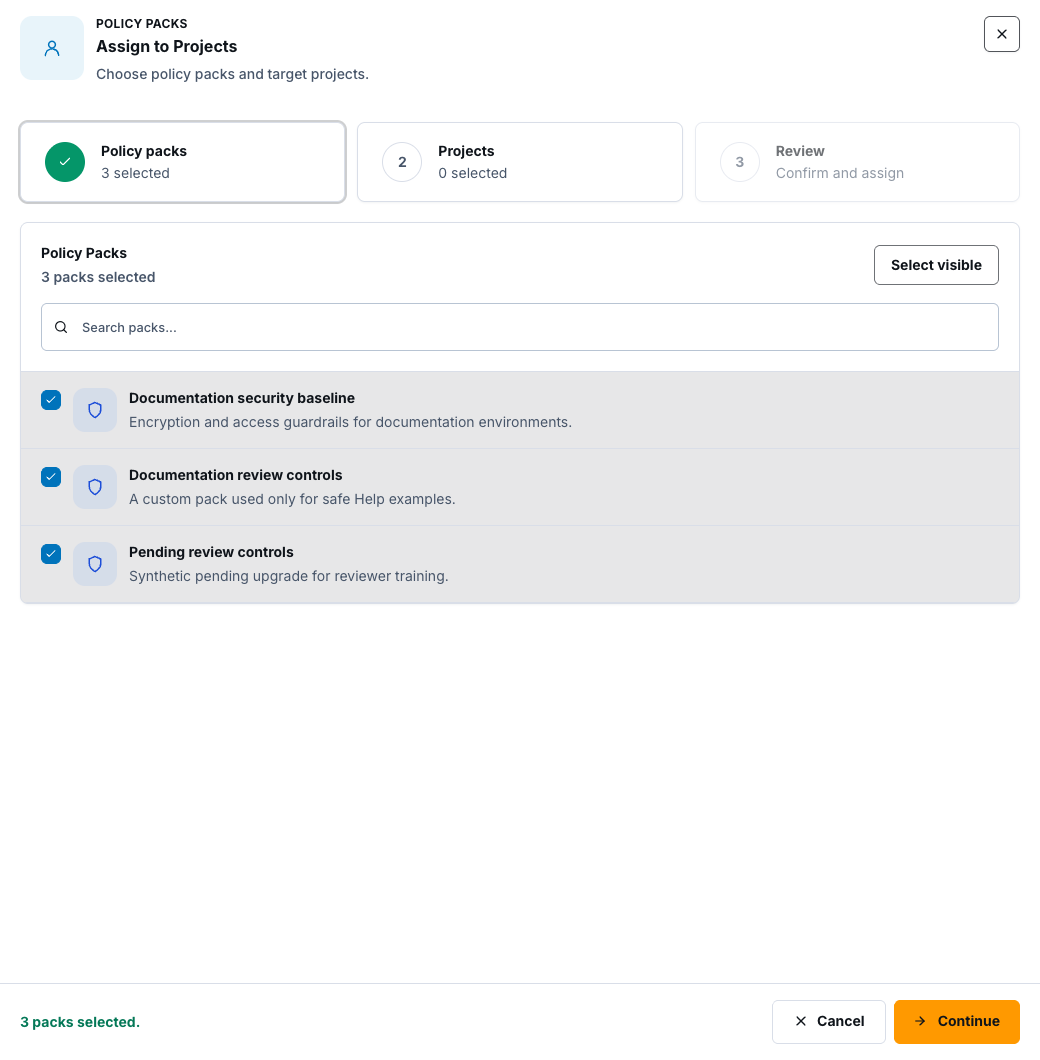
Section titled “Step 4: Preview project assignments”Select Assign packs. Choose packs, then select manageable projects with an active workspace. Choose Add to preserve other assigned packs or Replace to set the reviewed selection as the project list. Decide whether policy checks should be enabled.
On Review, select Preview changes first. A preview reports the intended changes but does not save settings.
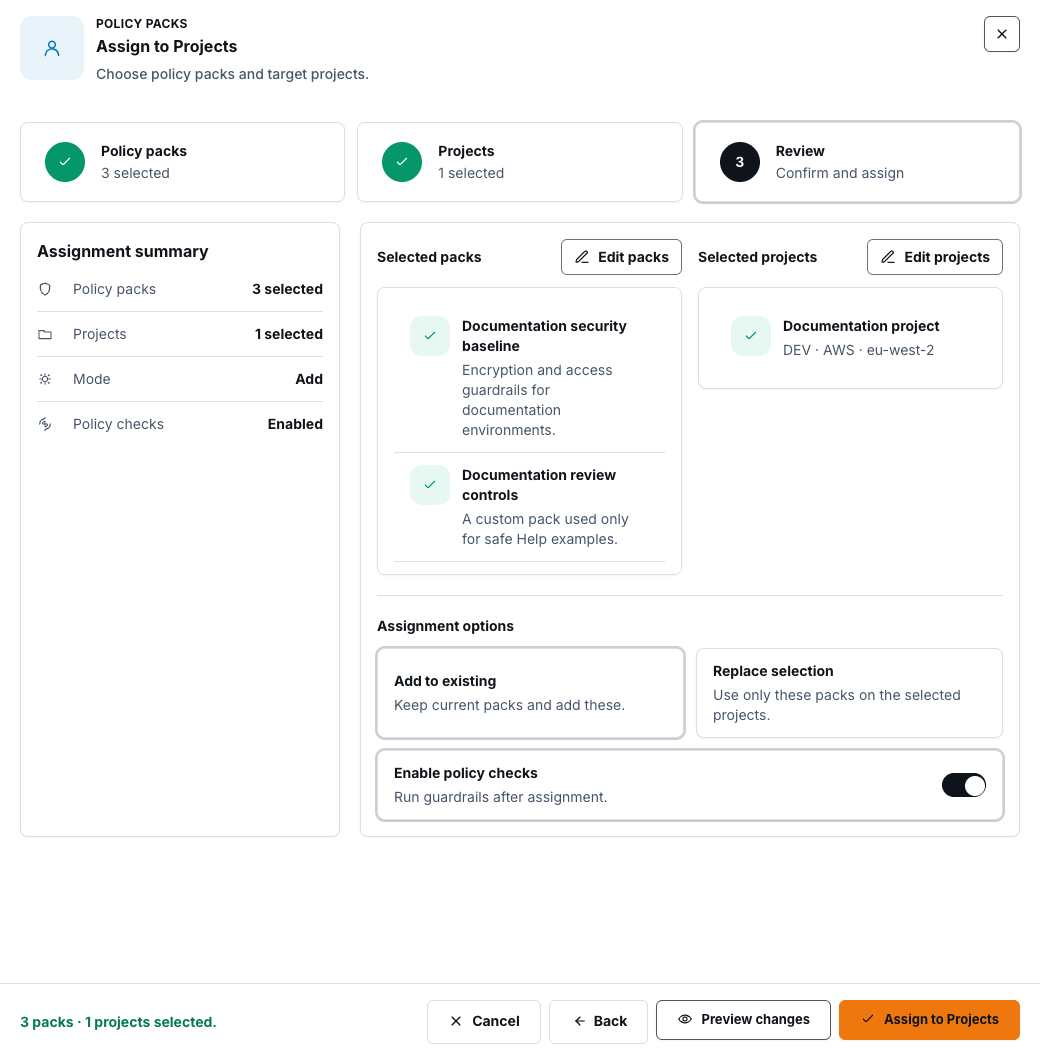
After review, select Assign to Projects. Confirm the completion result for each project; do not infer success for failed or ineligible rows.
Step 5: Review and remove assignments
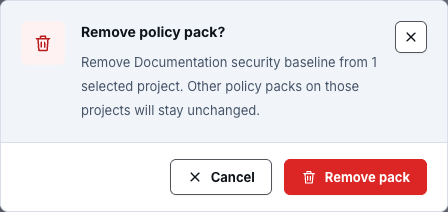
Section titled “Step 5: Review and remove assignments”Open Assignments, search and filter the server-backed list, then use Refresh, Previous, and Next. Open one assignment to inspect its projects. Select manageable projects and choose Remove from selected projects, then confirm.
Removal affects only the selected pack on the selected projects. Other packs remain assigned.
Step 6: Inspect history and roll back
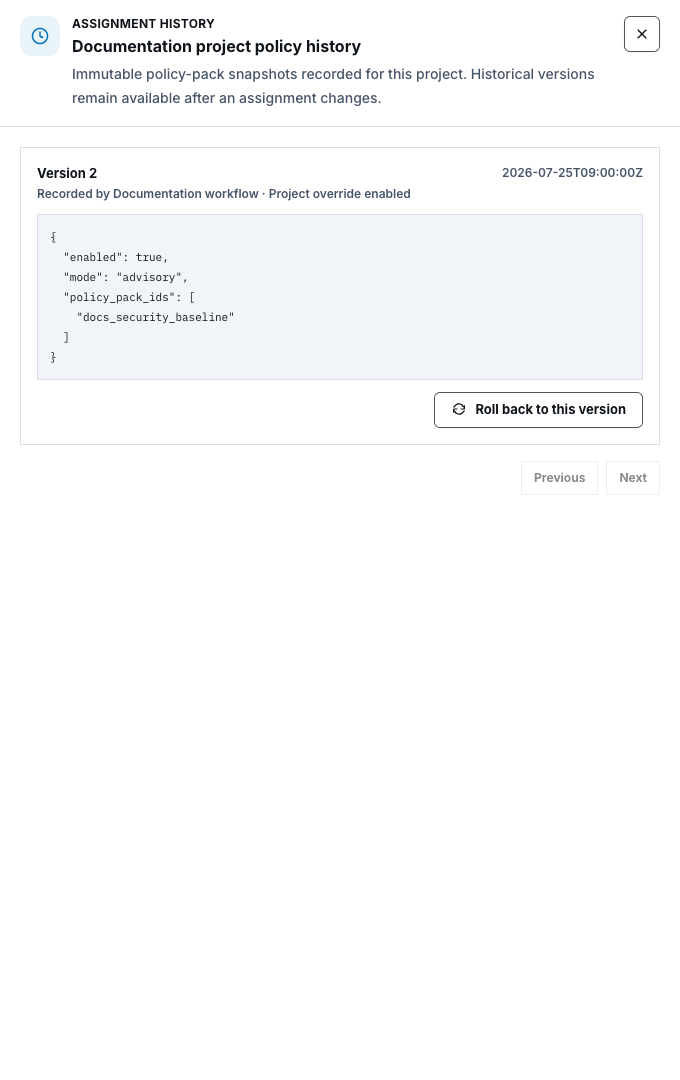
Section titled “Step 6: Inspect history and roll back”Select History beside a project. Review immutable assignment snapshots with Previous and Next. Choose Roll back to this version, inspect the confirmation, and select Roll back assignment.
Rollback creates a new assignment version from the selected snapshot. It does not rewrite or delete history.
Step 7: Request and decide version upgrades
Section titled “Step 7: Request and decide version upgrades”In version-upgrade approvals, select Request upgrade for an eligible pack and target version. This is how to request an upgrade that needs manual review. A different authorized reviewer must decide it: the requester cannot approve their own upgrade.
The reviewer selects Approve or Reject. Approval requires fresh security verification; rejection may include a concise, non-sensitive reason.


Check your result
Section titled “Check your result”The pack appears in Pack Library, persisted projects appear in Assignments, the preview and saved result are distinguishable, and history shows a new immutable version after rollback or upgrade.
Common blockers
Section titled “Common blockers”- No eligible project: confirm the project is manageable and has an active workspace.
- Edit unavailable: only custom packs can be edited.
- Approval unavailable: a requester cannot approve their own upgrade.
- Revision conflict: refresh the pack or assignment before retrying; do not overwrite a newer change.
- Verification unavailable: restore the required second factor before a protected mutation.
Pack configuration and deployment wiring alone are not live runtime evidence. Verify the resulting policy contract on a fresh Terraform plan.