
Set up Live Cost
The product navigation calls this workspace Cloud Cost. It reads normalized billing facts from the cloud account already linked to the selected workspace.
- Typical time
- 15–30 minutes plus provider reporting delay
- You need
- A project, active workspace, and healthy linked cloud account
- Outcome
- Cloud Cost enabled with an explicit first-sync state
Step 1: Choose a project
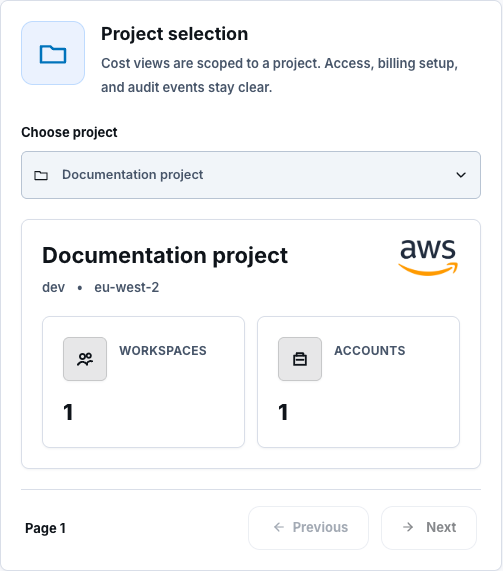
Section titled “Step 1: Choose a project”Open Cloud Cost and use Choose project. Projects load in bounded pages; use Previous and Next when offered. Confirm the provider and available workspace count before selecting a scope.
Step 2: Choose or prepare a workspace
Section titled “Step 2: Choose or prepare a workspace”Select an active workspace. Cloud account linked means the workspace has a provider connection; Link cloud account routes to the workspace account flow. Use workspace Previous and Next when needed, then select Open workspace cost.
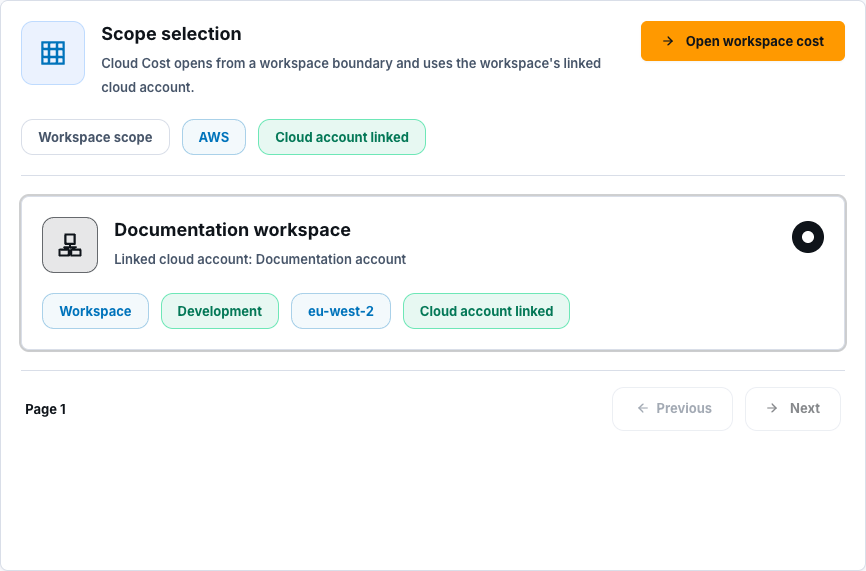
Cloud Cost preserves the selected project/workspace boundary. A connection linked elsewhere is not automatically valid for this workspace.
Step 3: Review and test the linked account
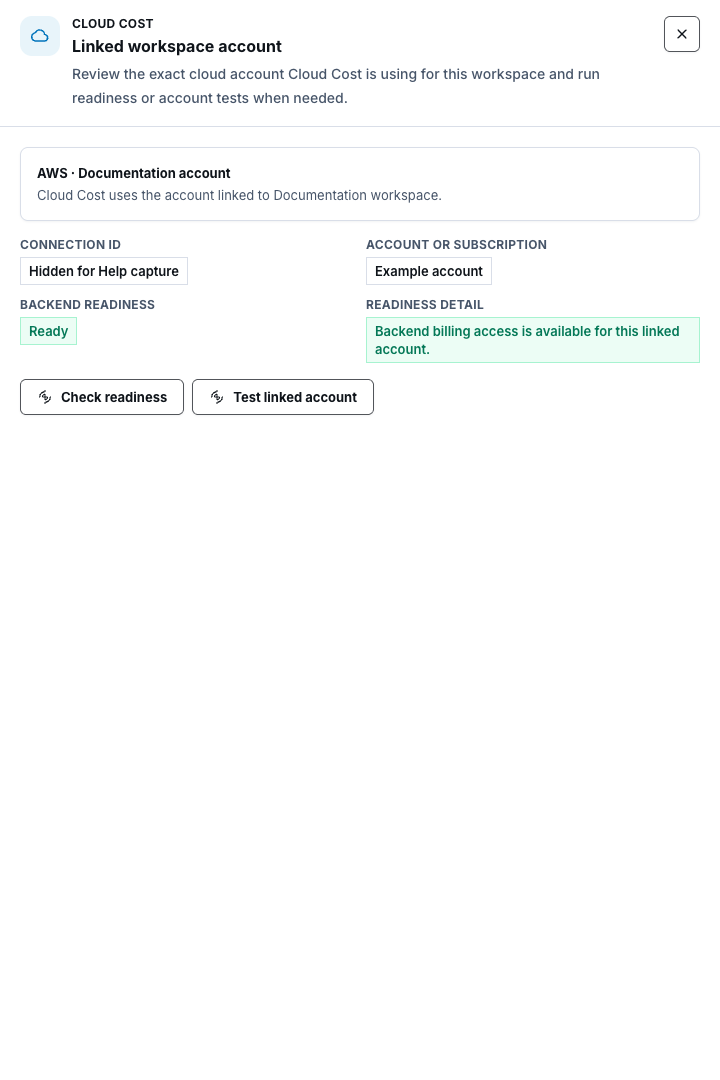
Section titled “Step 3: Review and test the linked account”On the Cloud Cost board, select Review linked account. Confirm the provider, account label, region, Backend readiness, and Readiness detail. Select Check readiness to refresh billing access.
When account health is uncertain, select Test linked account. This runs the normal provider-connection test and then the billing readiness check. Repair or retest the account before enabling billing data.
Step 4: Start billing data
Section titled “Step 4: Start billing data”Select Start billing data. The activation flow verifies:
- the linked account is active and healthy;
- provider billing access is ready;
- the workspace billing configuration is enabled;
- the first billing sync is accepted.
If readiness needs another attempt, use Run billing check again. If the first sync failed, use Run first billing sync again or Complete billing setup as shown.
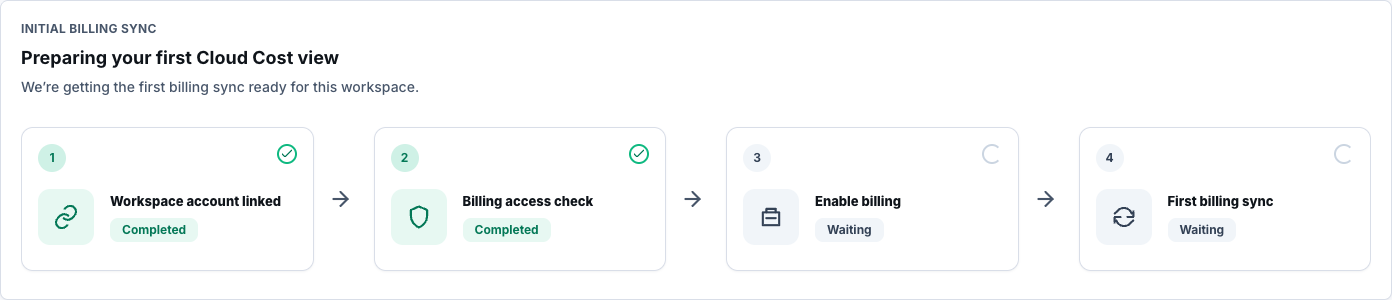
The current public activation board does not expose a scope selector. It uses the workspace-linked provider account and the backend-owned saved scope; do not invent account, tag, subscription, or resource-group selection steps that are not visible.
Step 5: Diagnose a failed activation step
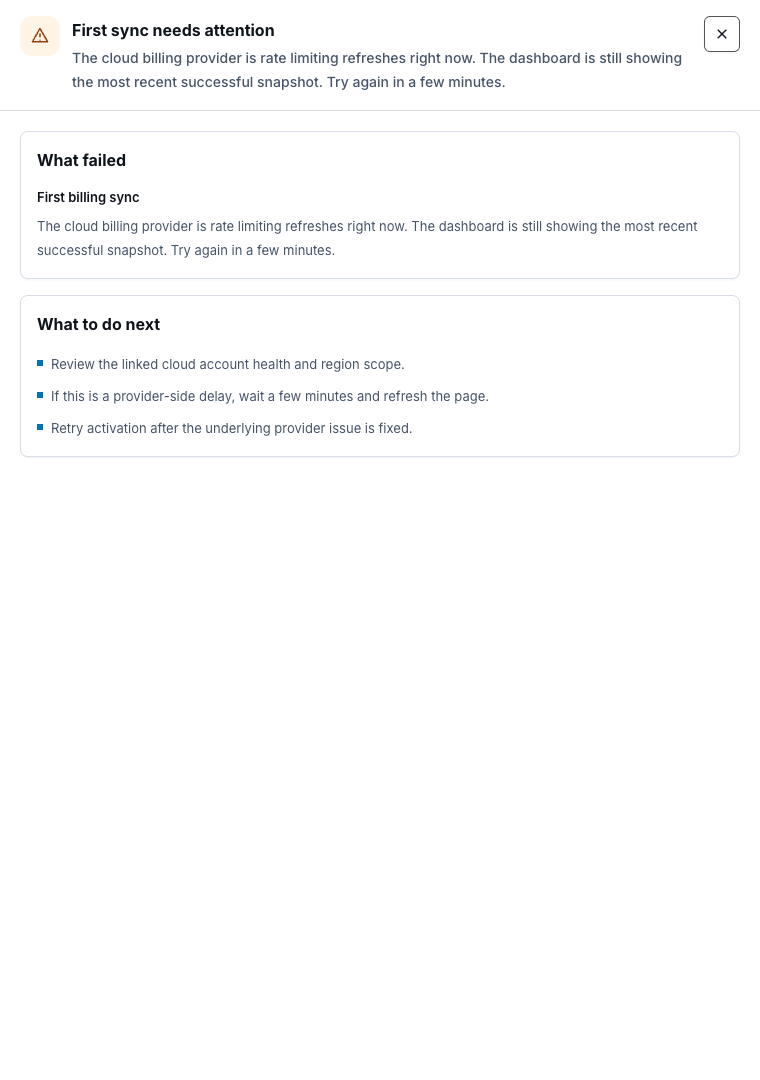
Section titled “Step 5: Diagnose a failed activation step”Select a step marked Needs action and then View details. Follow the safe recovery guidance for connection health, billing permission, allocation tags, provider delay, rate limit, or sync failure.
Grant only the documented billing-read access. Never place credentials, keys, role secrets, tokens, billing exports, or raw provider responses in ScrinCloud fields, screenshots, or support messages.
Step 6: Confirm the first snapshot state
Section titled “Step 6: Confirm the first snapshot state”The initial sync may cover the current month and the previous month. Watch each period show queued, running, succeeded, failed, or no-data status. You can leave the page while the background sync continues.
When the current snapshot is ready, the header shows Billing active. Use the billing-month selector for stored periods. Refresh is a new manual sync and may show remaining plan capacity; it is not a browser-only reload.
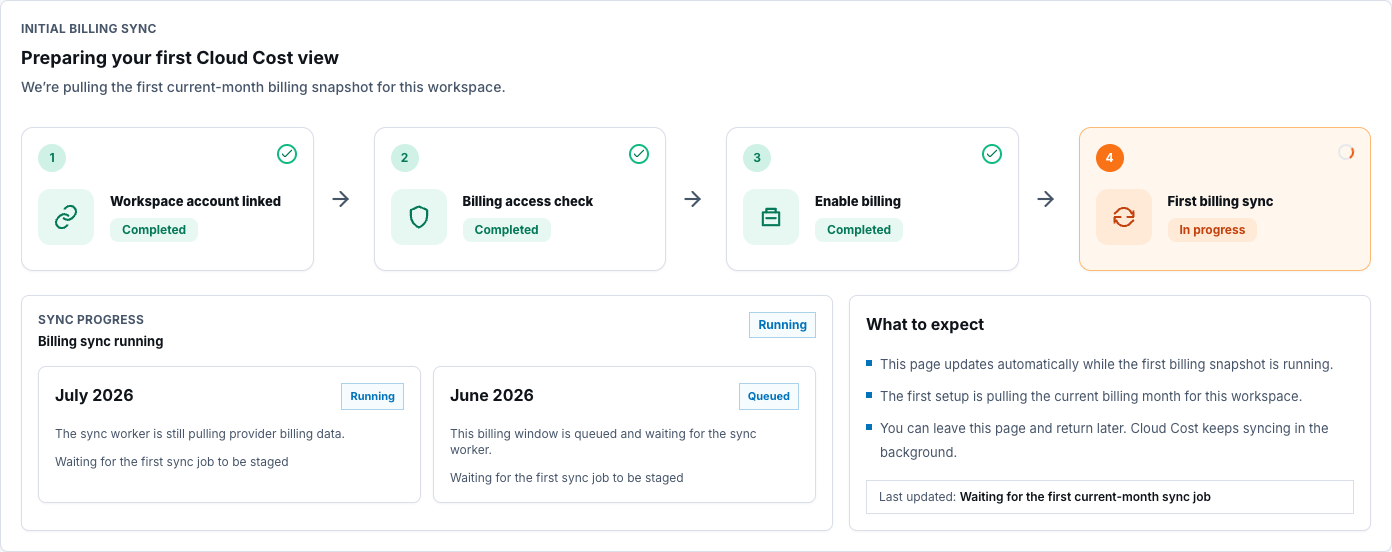
The authenticated board currently does not expose the available recent sync-history table as an action. Use only the visible latest status and activation progress; do not invent a history-navigation step.
Check your result
Section titled “Check your result”The intended workspace owns the linked account, readiness is explicit, Cloud Cost is enabled, and the first sync has a visible queued, running, succeeded, failed, or no-data state.
Common blockers
Section titled “Common blockers”- Workspace required: create or activate a workspace before opening Cloud Cost.
- Link cloud account: link a healthy account at the same workspace boundary.
- Billing permission missing: repair the approved provider read permission, then retest.
- No data yet: allow for provider reporting delay; zero provider rows are not proof that synchronization failed.
- Plan limit reached: wait for the quota reset or review billing capacity; do not bypass access controls.
UI, source, and deployment wiring alone do not prove a working live sync. That requires a successful runtime snapshot from the intended environment.