
Run and review Cloud Discovery
Cloud Discovery helps your team understand what already exists in an approved AWS or Azure scope. ScrinCloud checks access, scans supported services, reads resource metadata, maps supported relationships, and prepares results for review.
Discovery is an evidence-gathering workflow. Seeing a resource does not make it managed: discovery does not automatically adopt resources or authorize a Terraform change.
- Typical time
- 10–30 minutes
- You need
- A healthy cloud connection
- Next step
- Review management and drift
Before you begin
Section titled “Before you begin”Confirm that:
- the intended project and optional workspace are active;
- the selected provider account is Healthy;
- Check access succeeds;
- the selected region is approved and allowed by the connection; and
- no other user expects a different scope for this run.
If the panel does not show Ready to start, complete Set up Cloud Discovery first.
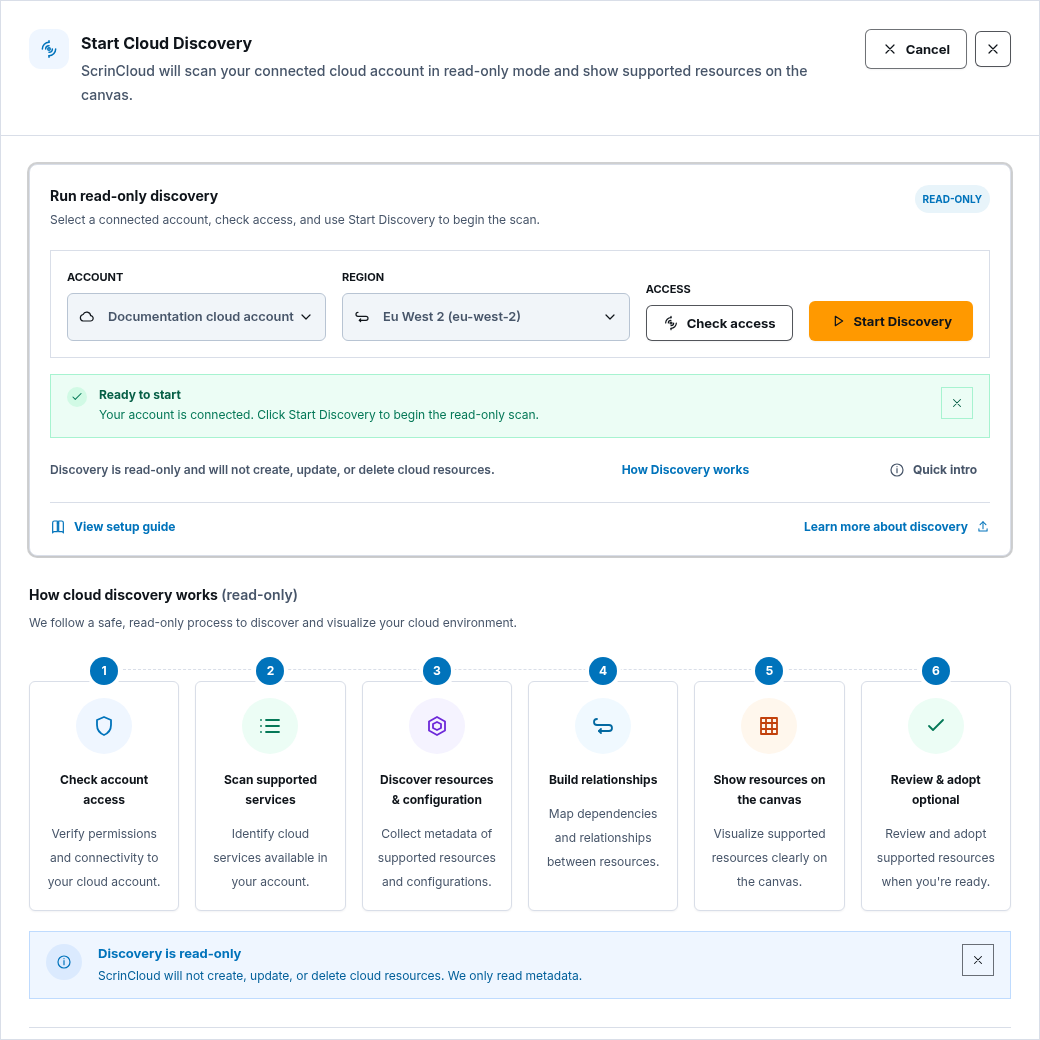
Step 1: Open the discovery entry point
Section titled “Step 1: Open the discovery entry point”From Architecture Studio:
- Open the Discovery area.
- Choose Quick intro if you want to review the process.
- In Start Cloud Discovery, read the six stages:
- check account access;
- scan supported services;
- discover resources and configuration;
- build relationships;
- show supported resources on the canvas; and
- review and adopt only when ready.
- Confirm the Read-only label and safety notice.
- Return to Run read-only discovery.
You can also use Discovery Operations for project-scoped run history and operational review. This guide starts from the canvas entry point and then moves to that page.
Step 2: Select account and region
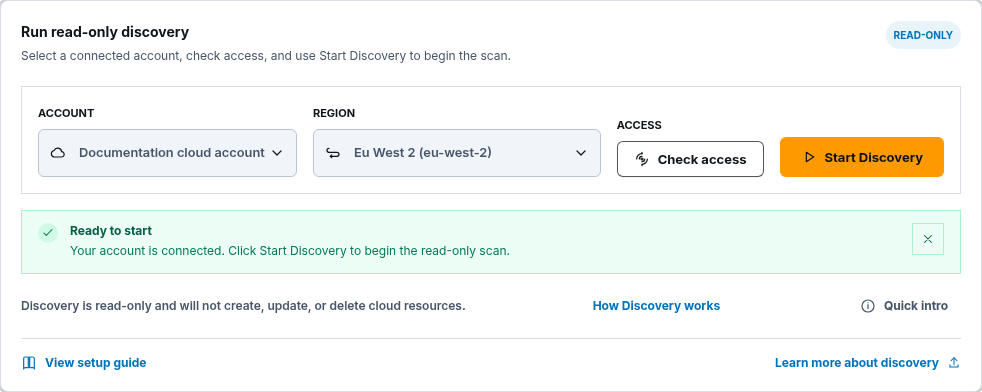
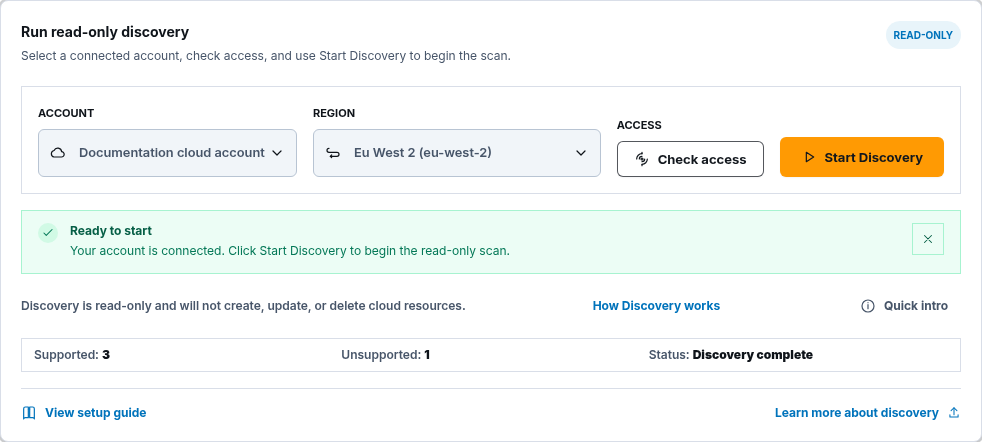
Section titled “Step 2: Select account and region”- Under Account, choose the tested cloud connection.
- Under Region, choose one of the connection’s allowed regions.
- Confirm the account provider matches the project provider.
- Choose Check access.
- Wait for the access-check success notice.
- Confirm Ready to start.
ScrinCloud only offers active, healthy connections that are eligible for the project provider. The region list is limited by the selected connection.
Step 3: Start the discovery run
Section titled “Step 3: Start the discovery run”- Recheck the project, optional workspace, account, and region.
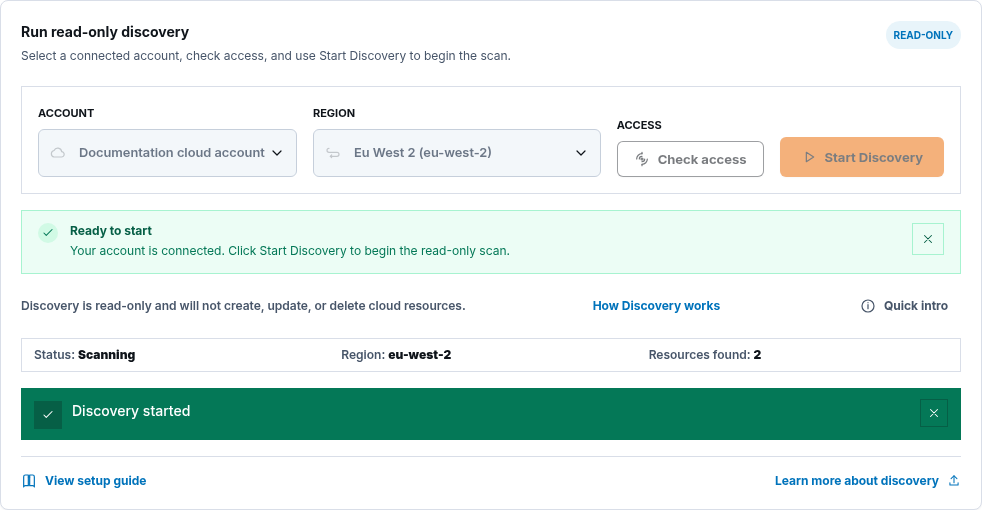
- Choose Start Discovery.
- Wait for the button’s Starting discovery… state to finish.
- Confirm the Discovery started notification.
- Do not click the action repeatedly. Duplicate submissions are disabled while the request starts.
Each request creates a run that can be reviewed later. Starting a new run does not apply infrastructure and does not replace earlier audit evidence.
Step 4: Follow the run status
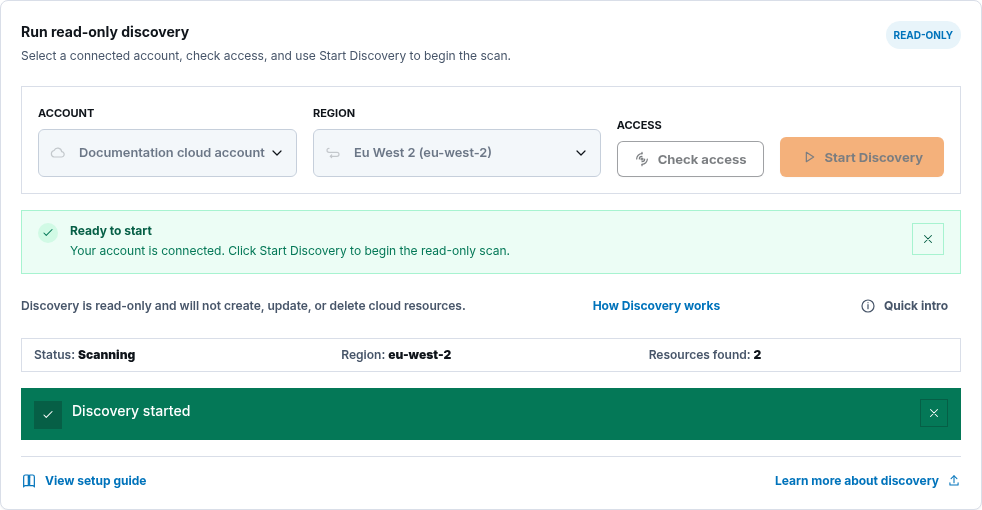
Section titled “Step 4: Follow the run status”The status panel can show:
- Queued: the request is waiting for a worker.
- Scanning: supported metadata is being collected.
- Completed: the run finished successfully.
- Completed with warnings: useful results exist, but part of the scope failed or could not be processed.
- Failed: the selected scope could not be discovered.
- Cancelled: the run ended before completion.
While work is active, review the region and Resources found count. Treat the count as progress information, not a final inventory total.
Step 5: Review the result summary
Section titled “Step 5: Review the result summary”For a completed run, review:
- Supported: resources ScrinCloud can represent through its approved product model.
- Unsupported: resources seen by discovery but not approved for normal canvas and management workflows.
- Status: Discovery complete or Completed with warnings.
Unsupported does not necessarily mean the cloud resource is invalid. It means the current ScrinCloud resource type, property model, Terraform mapping, validation support, or entitlement is not ready for normal adoption.
Do not substitute an inaccurate supported resource merely to remove something from the unsupported count.
Step 6: Open Discovery Operations
Section titled “Step 6: Open Discovery Operations”Use Discovery Operations to review durable project-scoped evidence:
- Select the intended project.
- Select the cloud account.
- Select the region.
- Choose a workspace or leave Project-level scope when appropriate.
- Open Discovery Runs.
- Use search, status, account, region, workspace, or date filters to locate the run.
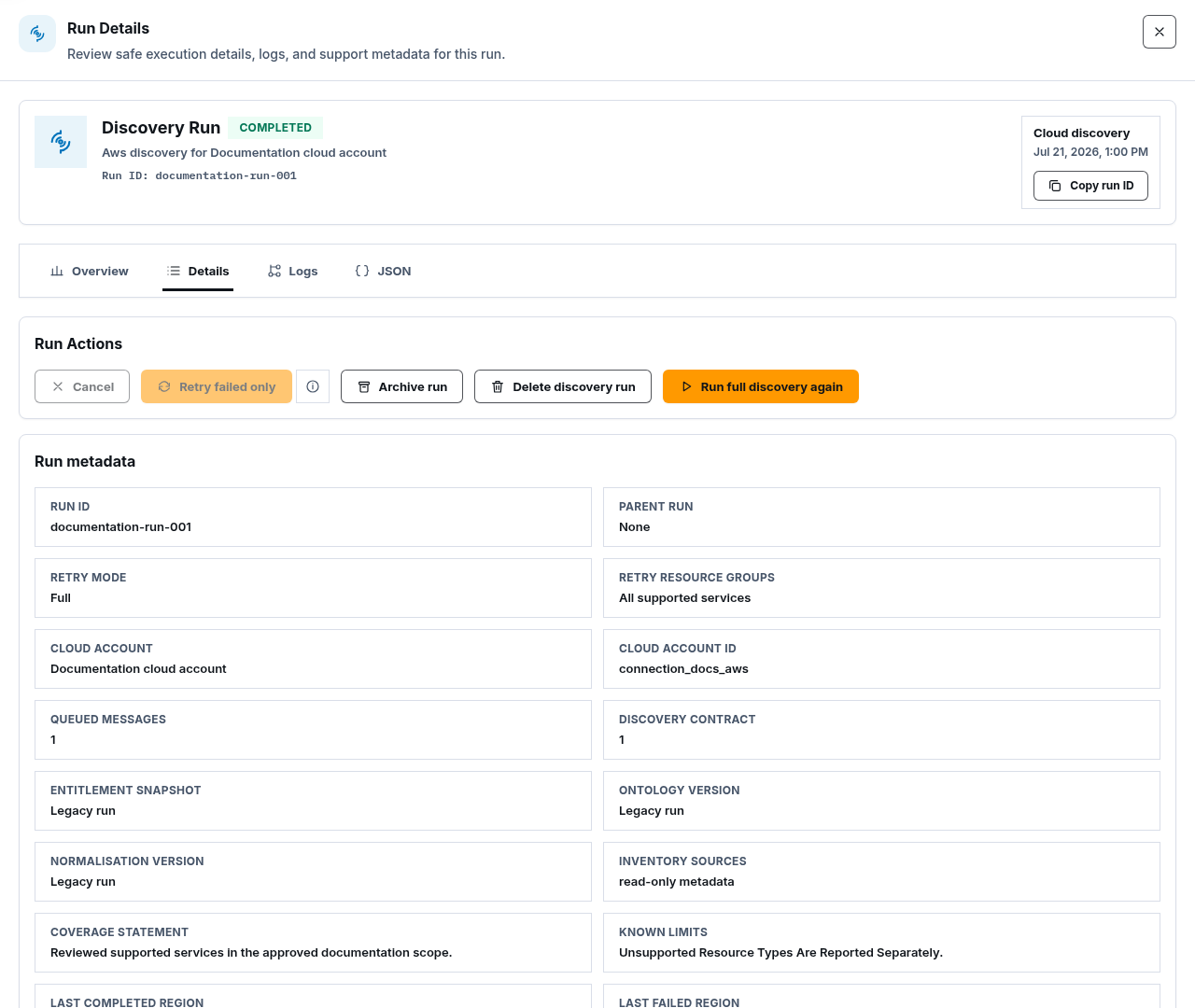
- Select the run ID to open its details.
- Review status, scope, supported count, unsupported count, failed collection items, coverage statement, known limits, and safe timeline.
The run drawer may offer governed actions such as Cancel, Retry failed only, Archive run, Delete discovery run, or Run full discovery again, depending on the current status.
Deleting a run removes visible run history and associated discovery results from this page. It does not delete cloud resources or modify Terraform, canvas state, adoption, drift, or reconciliation records.
Step 7: Review incomplete and unsupported scope
Section titled “Step 7: Review incomplete and unsupported scope”For Completed with warnings or Failed:
- Open the run.
- Review Failed discovery scope.
- Separate retryable failures from unsupported resources.
- Use Retry failed only only when the recorded failed scope is still approved.
- Use a full rerun when the complete approved inventory must be refreshed.
Then open Unsupported Resources:
- Review provider, service, display name, region, and safe support reason.
- Open details when you need the current product-support explanation.
- Use Request support if the resource is important to your design.
- Do not treat unsupported resources as normal canvas nodes.

Check your result
Section titled “Check your result”The run is ready for management review when:
- the final status is understood;
- account, region, project, and workspace scope are correct;
- supported and unsupported results are reviewed separately;
- failed scope has been retried or recorded as a known limitation;
- the coverage statement and known limits are understood; and
- no discovered item has been mistaken for an automatically managed resource.
Common blockers
Section titled “Common blockers”Start Discovery is disabled
Section titled “Start Discovery is disabled”Choose an eligible account and allowed region. Run Check access and resolve connection health problems first.
Discovery remains Queued
Section titled “Discovery remains Queued”Keep the run page open or return through Discovery Operations later. Do not start repeated runs simply because a worker has not begun yet.
The run completes with warnings
Section titled “The run completes with warnings”Review failed scope and unsupported resources separately. Retry only approved, retryable failures; record the remaining limitation.
The run fails
Section titled “The run fails”Read the safe failure reason, test the cloud connection, confirm the allowed region and permission probes, then retry. Never paste raw credentials or provider payloads into a support request.
The result count is lower than expected
Section titled “The result count is lower than expected”Check the selected account, region, coverage statement, known limits, failed scope, and unsupported list. Do not broaden permissions until the missing read capability is identified and approved.
A discovered resource is absent from the canvas
Section titled “A discovered resource is absent from the canvas”It may be unsupported, filtered, outside the selected region, or not adopted. Review the run and unsupported results before adding a manual replacement.
Continue
Section titled “Continue”Discovery evidence is now ready for deliberate management, drift, and reconciliation decisions.
Continue with Manage resources and drift.