
Manage team and access
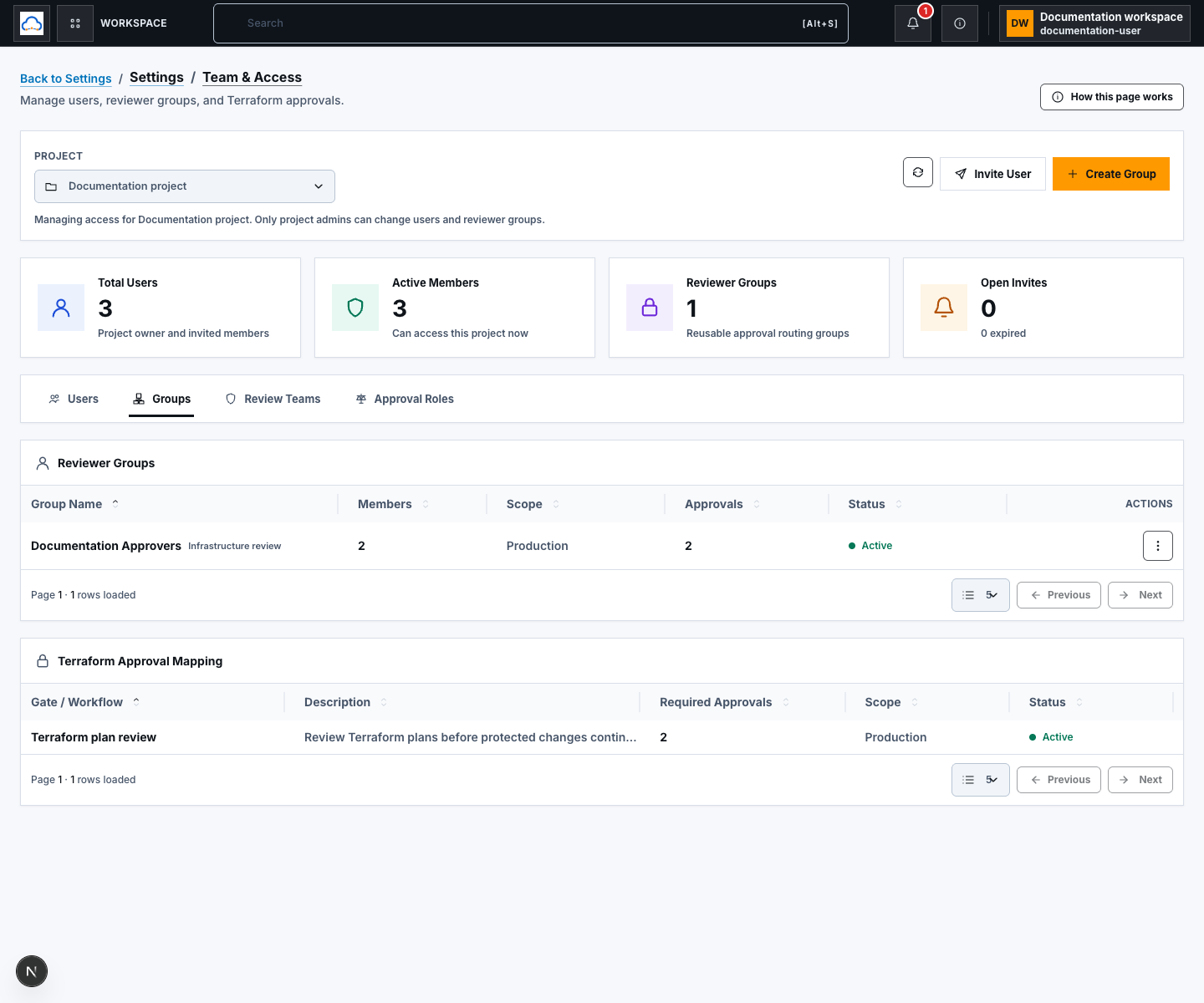
Settings → Team & Access is project-scoped. It combines the user directory, reviewer groups, review teams, approval roles, and Terraform approval mapping. Only a project administrator can change users or reviewer groups.
- Typical time
- 10–20 minutes
- You need
- Project administrator access
- Outcome
- Reviewed membership and reusable approval routing
Step 1: Select the project and view
Section titled “Step 1: Select the project and view”Open Settings → Team & Access, select the project, and use the tabs:
- Users
- Reviewer Groups
- Review Teams
- Approval Roles
Review Total Users, Active Members, Reviewer Groups, and Open Invites. Use the refresh action after another administrator makes a change. Lists use backend pages; use page size, Previous, and Next instead of assuming the first page contains every record.
Step 2: Invite a user
Section titled “Step 2: Invite a user”Choose Invite User. ScrinCloud opens the selected project’s setup flow for members.
- enter the invited person’s email address;
- select the lowest useful project role;
- review the selected project;
- send the invitation; and
- return to Team & Access to confirm the pending row.
Roles are Admin, Editor, Reviewer, and Viewer. Provider access, billing authority, and approval-group membership remain separate permissions.
Step 3: Manage a member or invitation
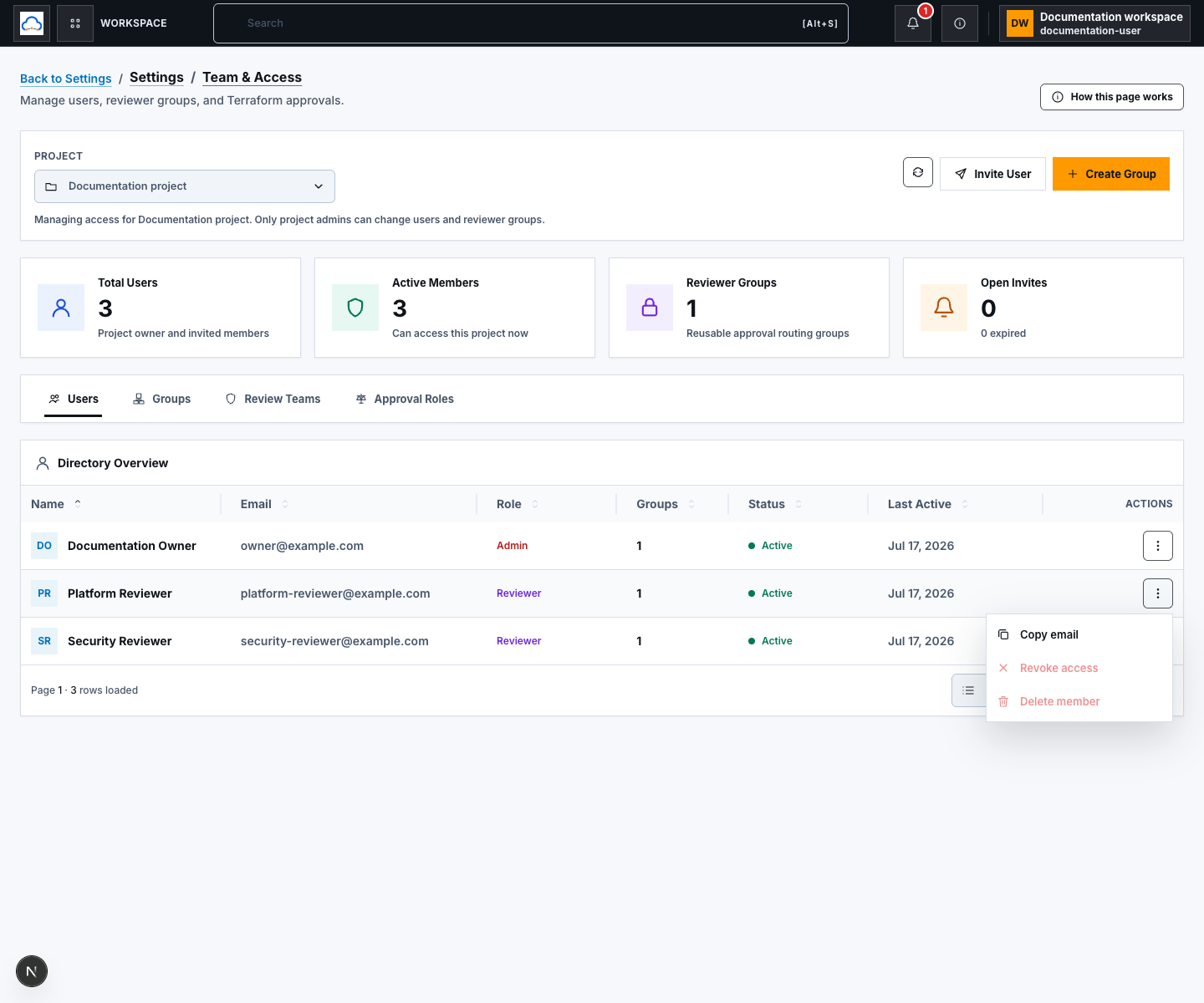
Section titled “Step 3: Manage a member or invitation”Open the row actions for the intended directory entry:
- Copy email copies the visible address locally.
- Resend invitation sends a new message for an eligible pending or expired invitation.
- Revoke access blocks an active non-owner member after confirmation.
- Delete member removes an active member’s project access record.
- Delete invitation invalidates an invitation record.
The project owner cannot be revoked through this row action. Review the name, email, role, status, and project before confirming a destructive action.
Step 4: Create a reviewer group
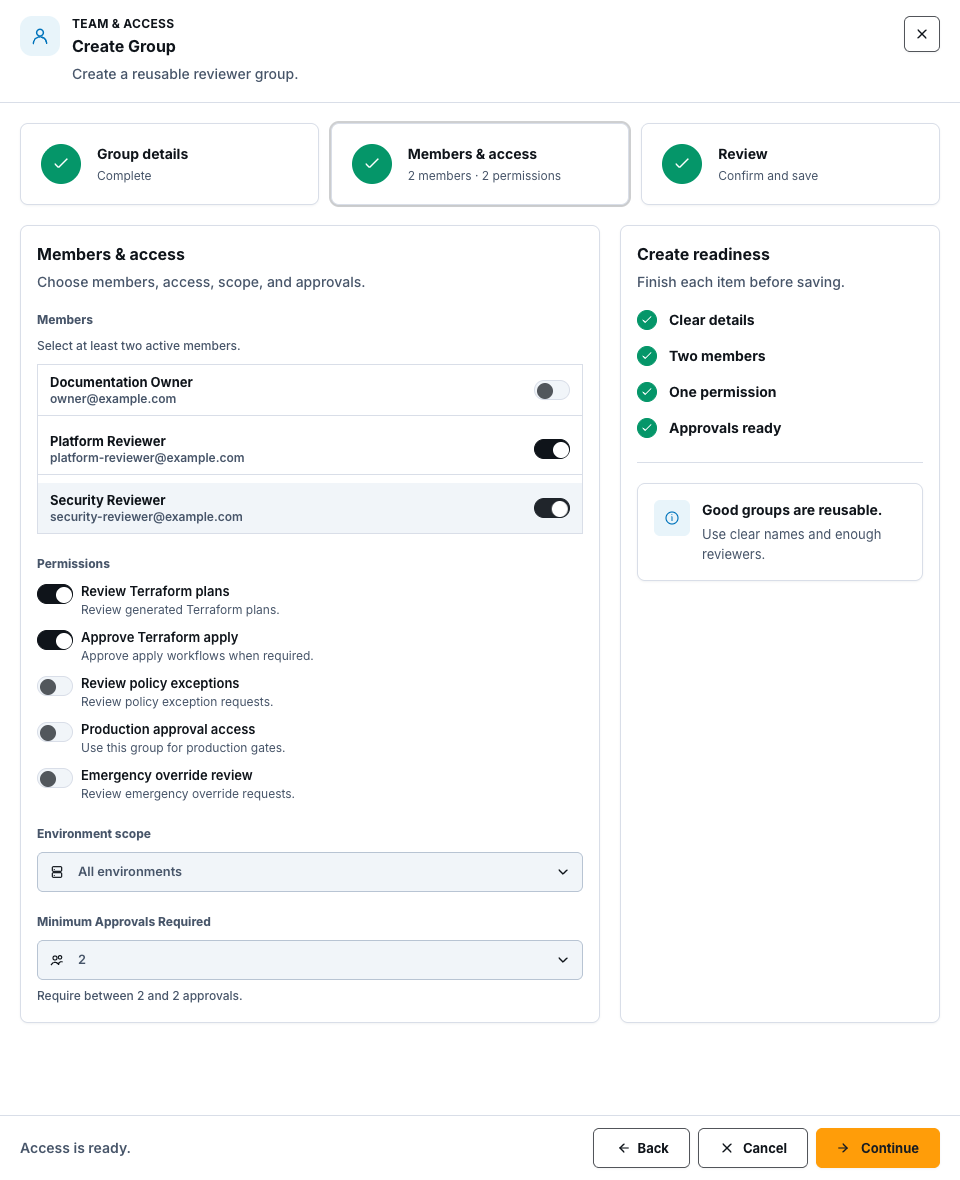
Section titled “Step 4: Create a reviewer group”Choose Create Group and complete the three drawer steps:
- Group details: enter a name and description, then choose Reviewer Group, Review Team, or Approval Role and add a clear function.
- Members & access: select at least two active project members, choose one or more permissions, select the environment scope, and set at least two required approvals.
- Review: confirm members, permissions, scope, and minimum approvals, then choose Create Group.
Available permissions include Terraform plan review, Terraform apply approval, policy-exception review, production approval access, and emergency-override review.
Step 5: Edit and verify approval routing
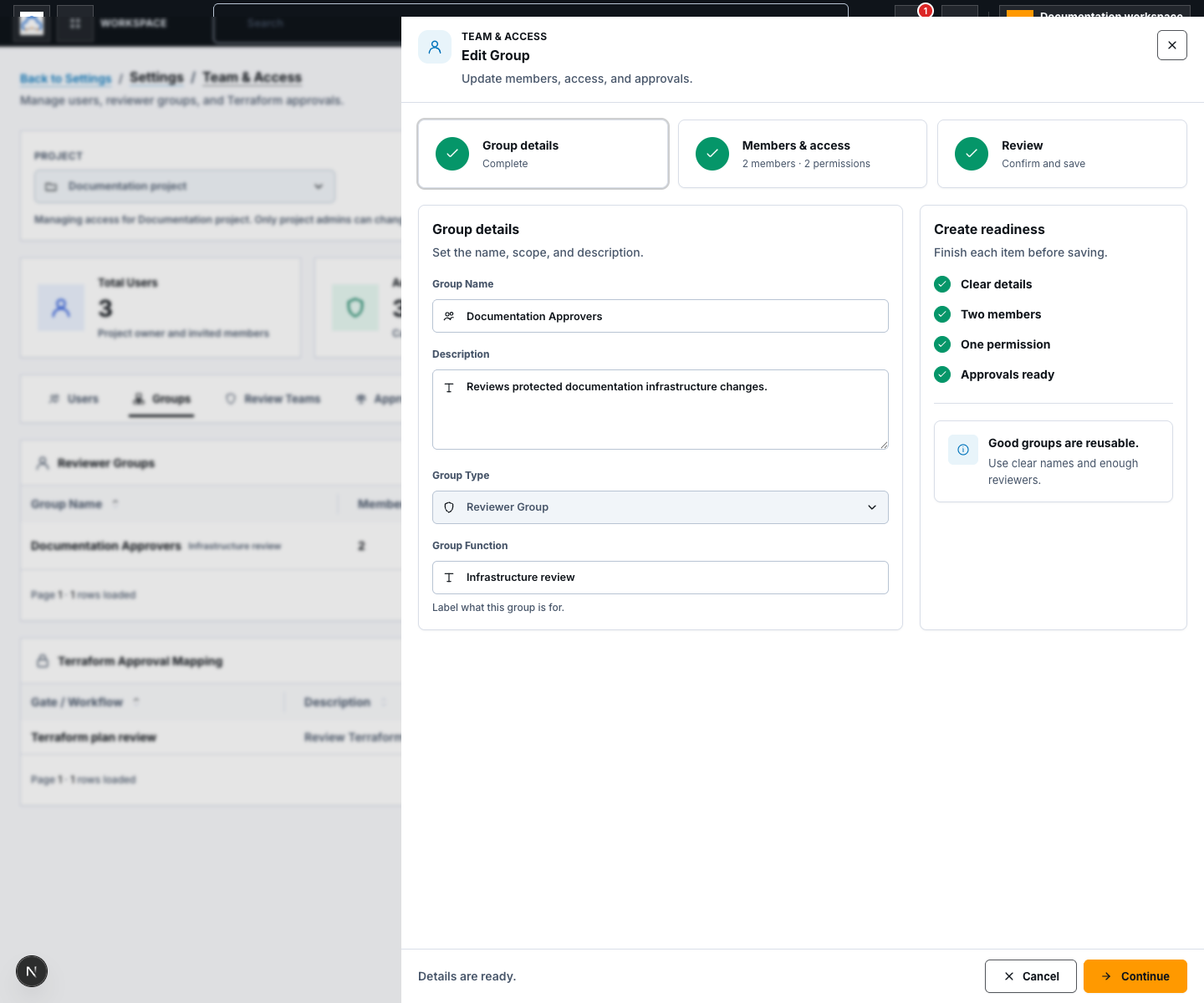
Section titled “Step 5: Edit and verify approval routing”Open Reviewer Groups, Review Teams, or Approval Roles and choose Edit on the intended row. Update the same details, members, permissions, scope, or minimum approvals, then choose Save Group.
Review Terraform Approval Mapping to confirm groups with review or apply permissions are visible for routing. Creating a group does not approve a Terraform plan and does not let a member self-approve.
Check your result
Section titled “Check your result”Reload the selected project and confirm the directory status or group membership, permission, environment scope, and minimum approvals. Review the appropriate audit record for a high-impact change. UI state alone is not proof that the backend mutation or notification delivery succeeded.
Common blockers
Section titled “Common blockers”No manageable project is available
Section titled “No manageable project is available”Create a project or ask a project administrator to grant you administrator access.
Create Group is disabled
Section titled “Create Group is disabled”Select a project. The group also needs a name, description, at least two active members, at least one permission, and a minimum approval count no greater than its selected members.
Resend or revoke is missing
Section titled “Resend or revoke is missing”Resend applies to eligible non-active invitations. Revoke applies to active non-owner members. Use the row’s current status to choose the correct action.