
Reset your password
Password recovery does not reveal whether an account exists. It creates a short-lived backend challenge and exposes only the verification methods allowed for that account and policy.
- Typical time
- 5–10 minutes
- You need
- Email or authenticator access
- Outcome
- A new password and fresh sign-in
Start recovery
Section titled “Start recovery”- On Sign in, choose Forgot password?.
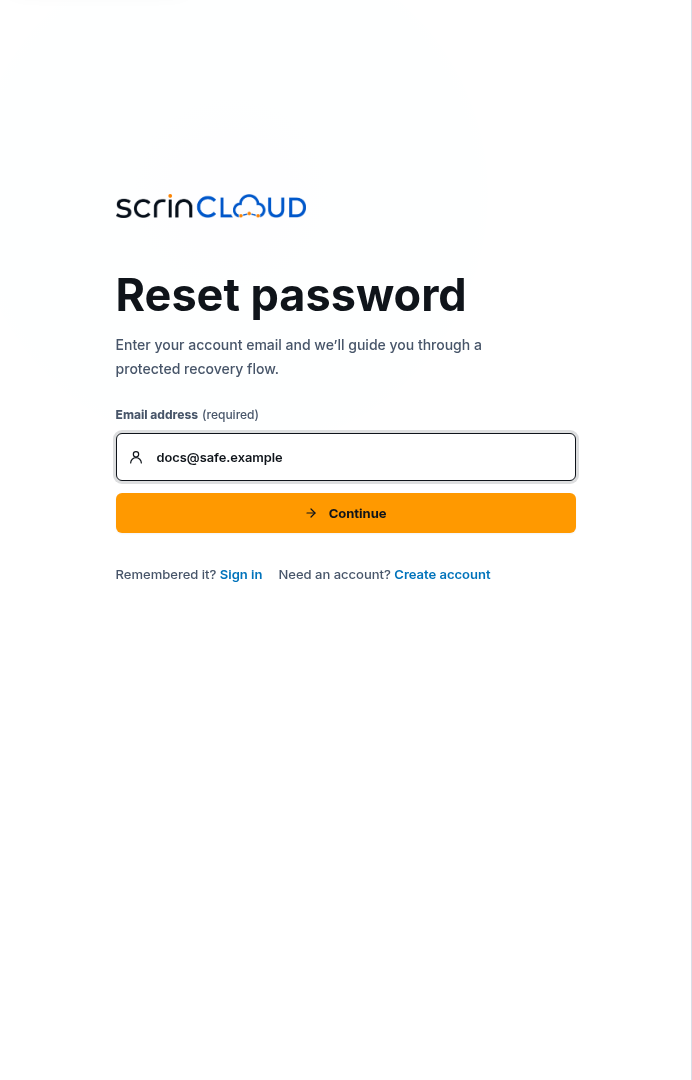
- On Reset password, enter Email address.
- Choose Continue once and wait for Preparing recovery….
- Use Sign in if you remember the password.
- Use Create account only when you do not have an account.
The response remains deliberately neutral. Do not use recovery messages to test whether another person has an account.
Check your result
Section titled “Check your result”The page changes to Verify identity and displays only a masked account and the allowed verification methods.
Choose and prepare a verification method
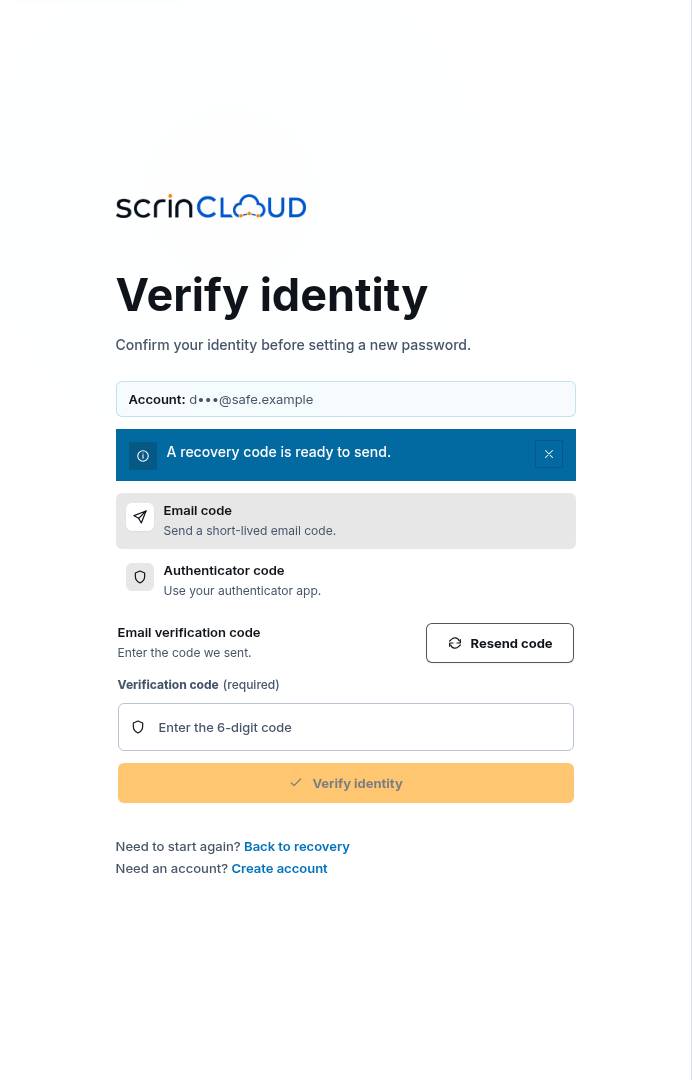
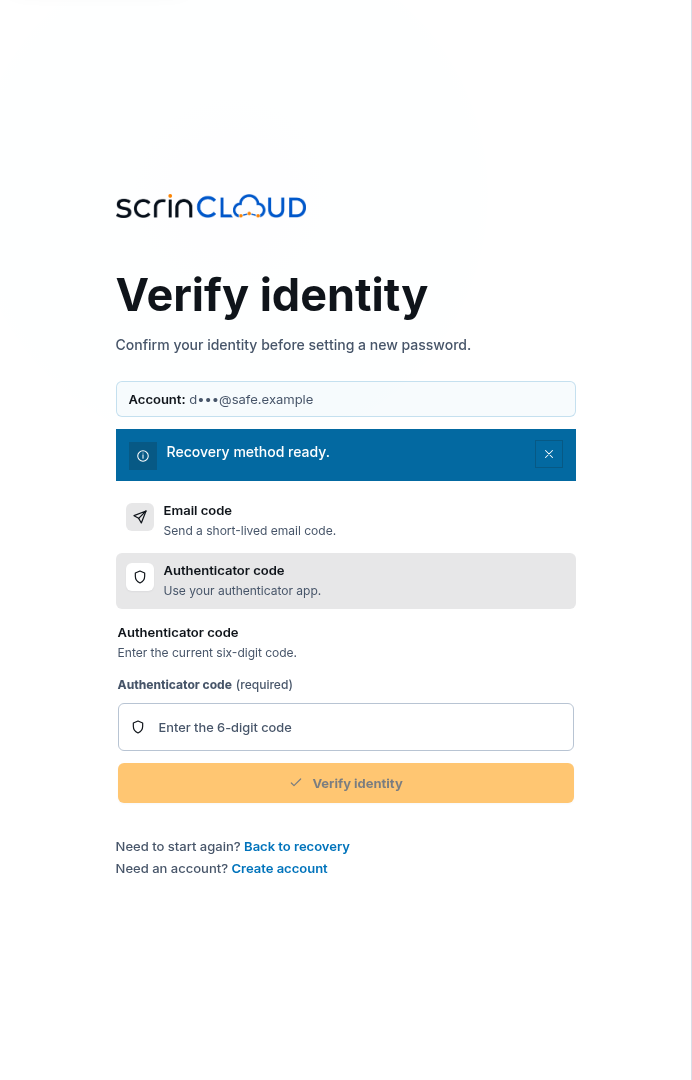
Section titled “Choose and prepare a verification method”- Choose Email code or Authenticator code.
- For email, wait for the automatic send or choose Resend code once.
- For authenticator, open the correct enrolled account in your app.
- Do not share either code.
Changing methods selects and prepares that backend challenge method. Starting a new reset invalidates assumptions about an older challenge.
Verify identity
Section titled “Verify identity”- Enter the six-digit Verification code or Authenticator code.
- Choose Verify identity and wait for Verifying….
- If the email code expired, choose Resend code once and use the newest one.
- If the recovery session is missing, choose Back to recovery and start over.
Check your result
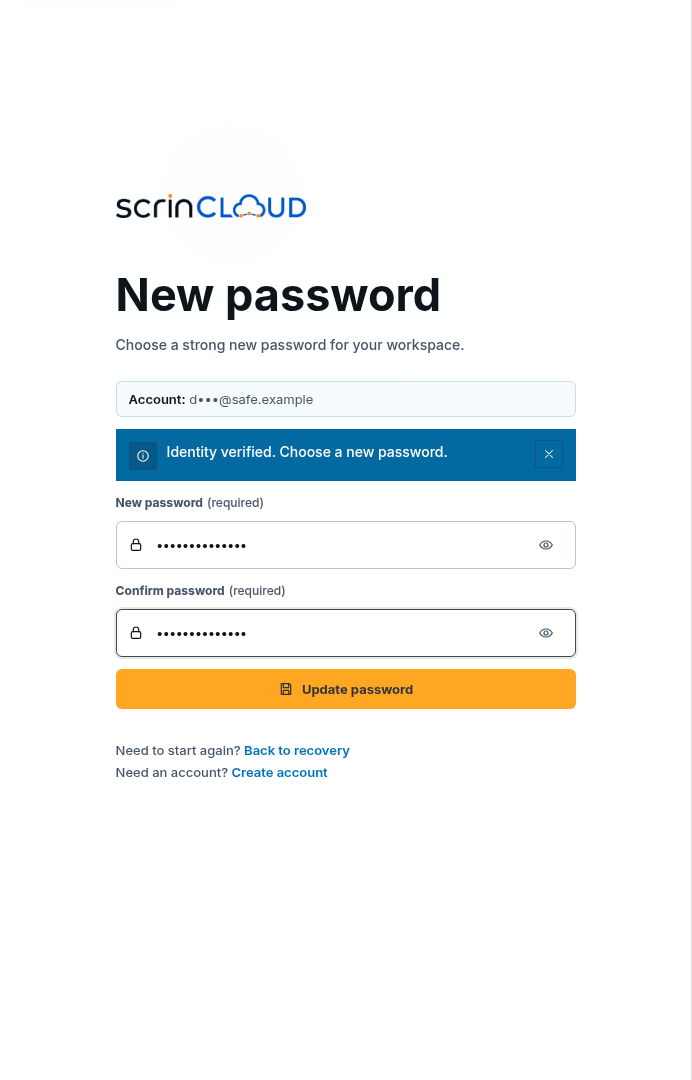
Section titled “Check your result”The page title changes to New password. That transition proves the current reset challenge was authorized; it does not authenticate a normal product session.
Choose a new password
Section titled “Choose a new password”- Enter New password.
- Follow the displayed policy, including at least 12 characters, uppercase, and a special character when required.
- Enter Confirm password exactly.
- Choose Update password and wait for Updating password….
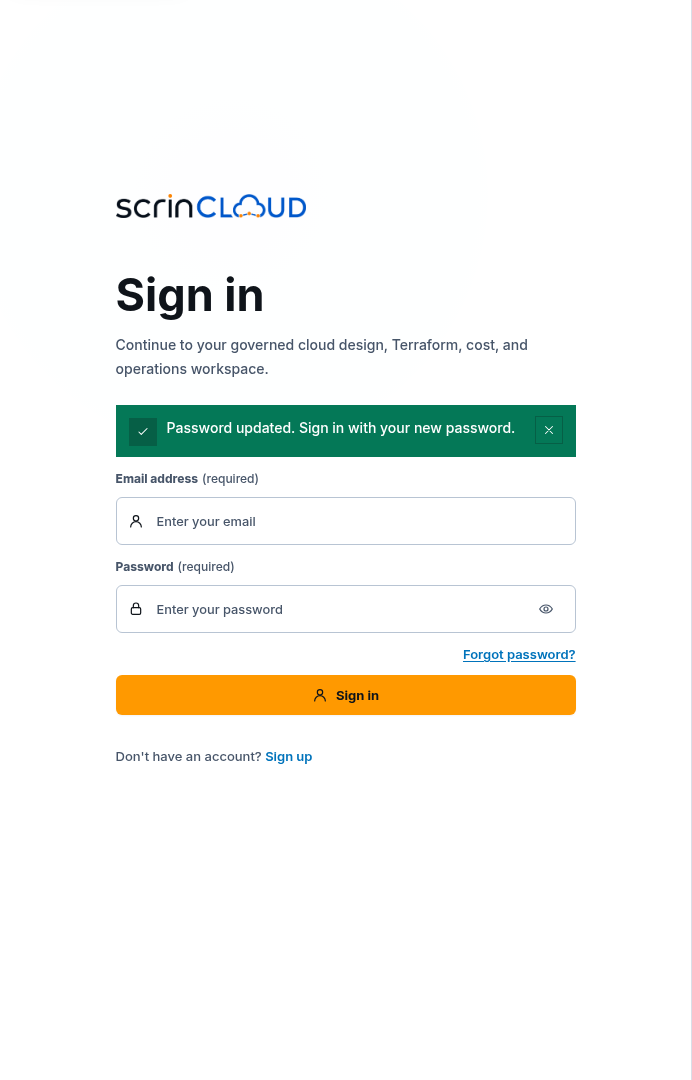
- On Sign in, confirm Password updated. Sign in with your new password.
Sign in again
Section titled “Sign in again”Use the new password on Sign in. Complete any required second factor. Do not expect the reset page to create a signed-in session.
Common blockers
Section titled “Common blockers”No recovery method is available
Section titled “No recovery method is available”Start again once. If the account has no reachable permitted factor, use your organization’s verified recovery process. Do not create a bypass.
The code is rejected
Section titled “The code is rejected”Confirm the selected method and use the newest current code. Do not repeatedly guess; challenges expire and attempts can be rate limited.
Update password is disabled
Section titled “Update password is disabled”Meet every visible password requirement and make both values match exactly.
The reset page says the session is unavailable
Section titled “The reset page says the session is unavailable”Use Back to recovery. Never edit or reuse the challenge URL.