
Use the Terraform code editor
The Terraform code editor is the workspace for reviewing infrastructure source and its evidence. It combines a file browser, editor, saved revisions, diagnostics, policy results, plan information, and a constrained product terminal.
You can use this page without writing Terraform. A beginner’s first goal is to understand where the files came from, review their structure, and run safe checks—not to deploy them.
- Typical time
- 15–20 minutes
- You need
- A linked workspace
- End result
- Saved, reviewed files
Open the correct code workspace
Section titled “Open the correct code workspace”From Architecture Studio:
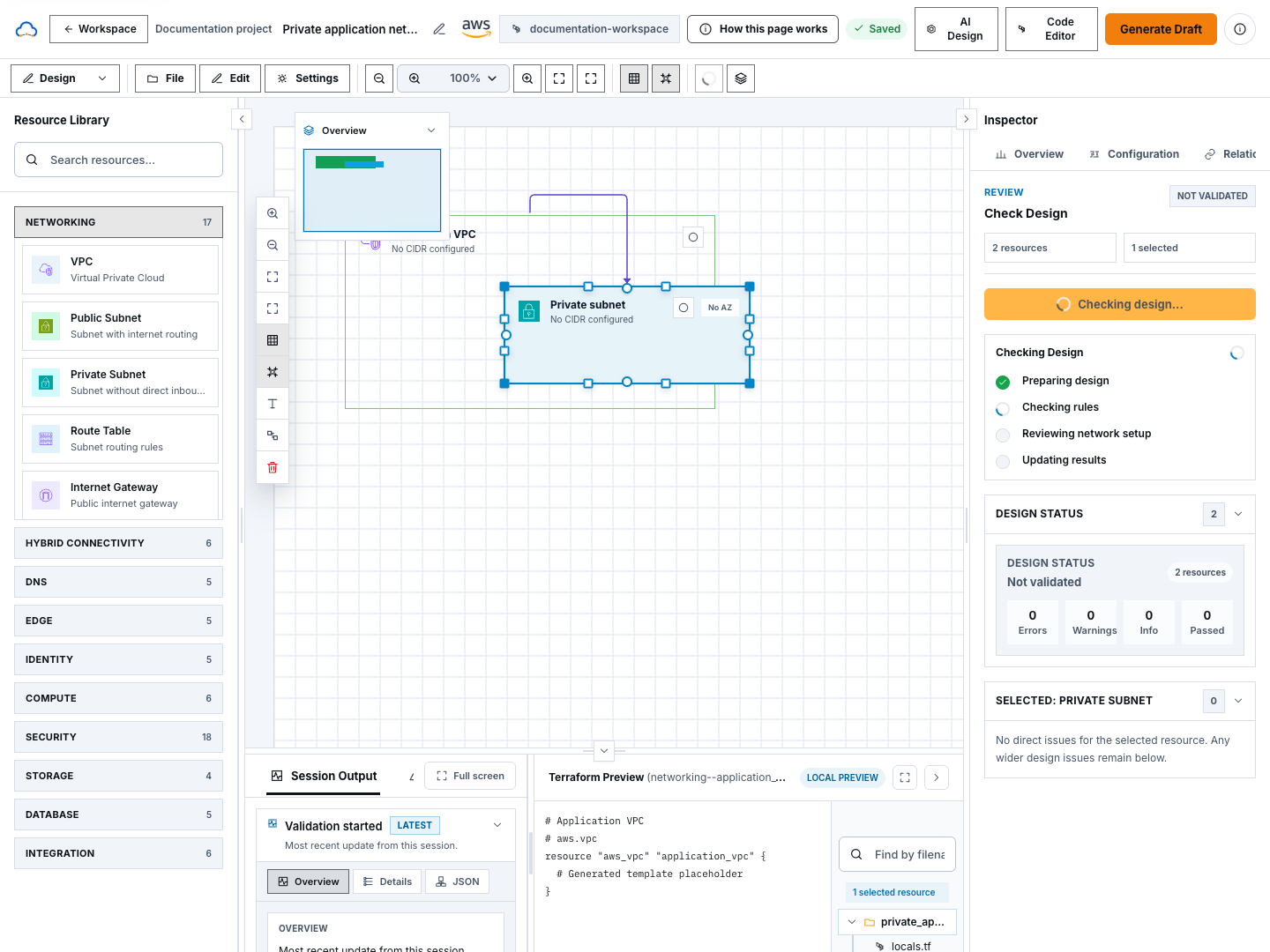
- Confirm the intended project and workspace in the header.
- Confirm the diagram is saved.
- Choose Code Editor.
- Wait for the editor to load the workspace.
- Reconfirm the workspace name inside the editor.
After project setup, you can also select Open Code Editor in Choose where to continue. ScrinCloud opens the same project and workspace with the code tab selected.
Choose a safe starting point
Section titled “Choose a safe starting point”Before a Terraform draft exists, the editor can show a local preview with a scaffolded file and the available workspace actions. This preview is not a saved Terraform revision.
- Generate from Architecture Studio returns to the visual design. It does not generate files by itself.
- Import Terraform loads supported local
.tf,.tfvars, or JSON files for review. - Create a file starts an empty Terraform file.
- Open a saved revision reviews or restores an immutable workspace snapshot.
- Use a starter template adds provider and Terraform version files without creating resources.
For this beginner journey, choose Generate from Architecture Studio when the saved canvas is the source of intent. Use Import only for files you are authorized to review and that contain no secrets or Terraform state.
After returning to Architecture Studio:
- Confirm the intended diagram and workspace.
- Confirm the diagram is saved.
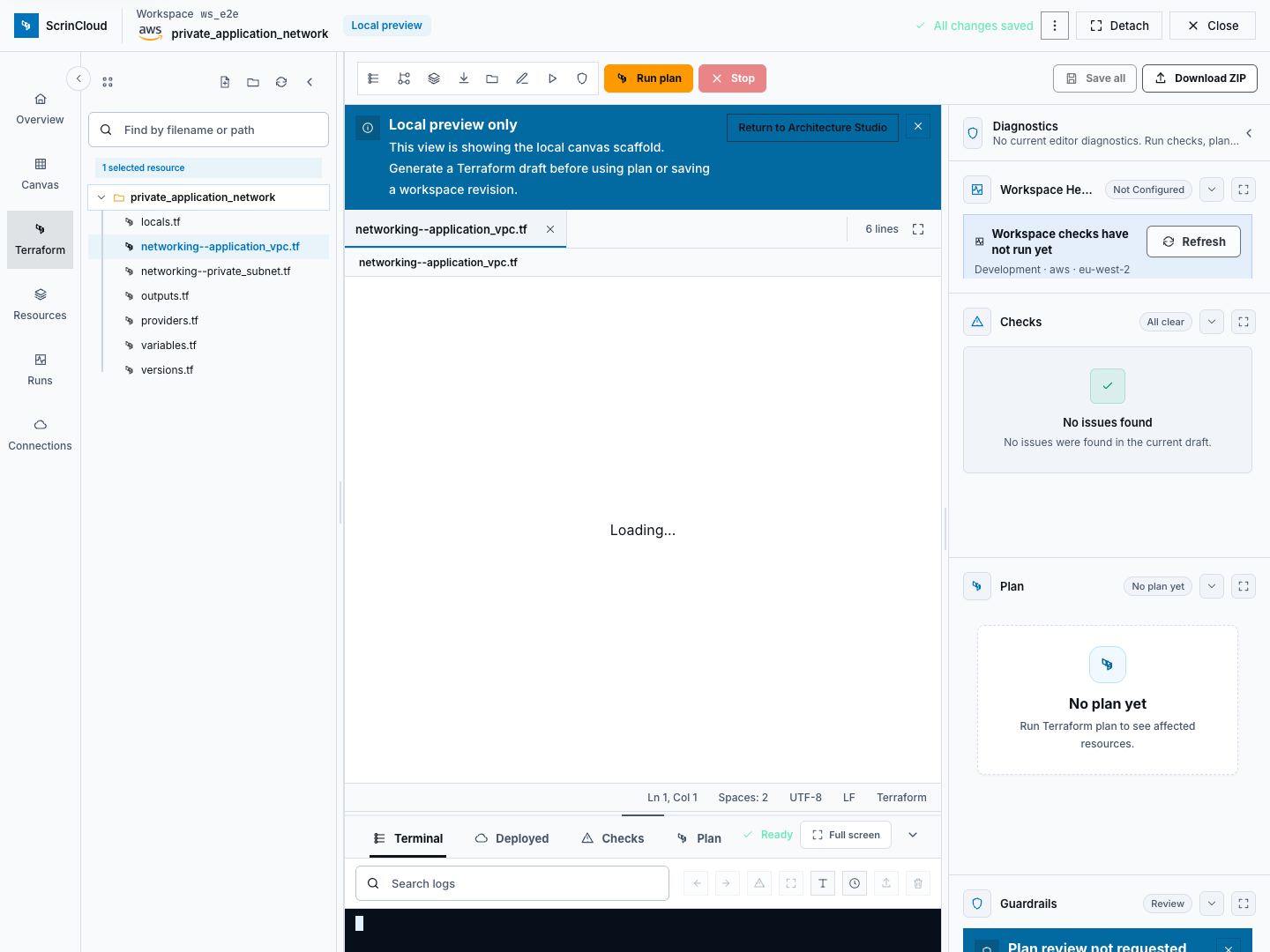
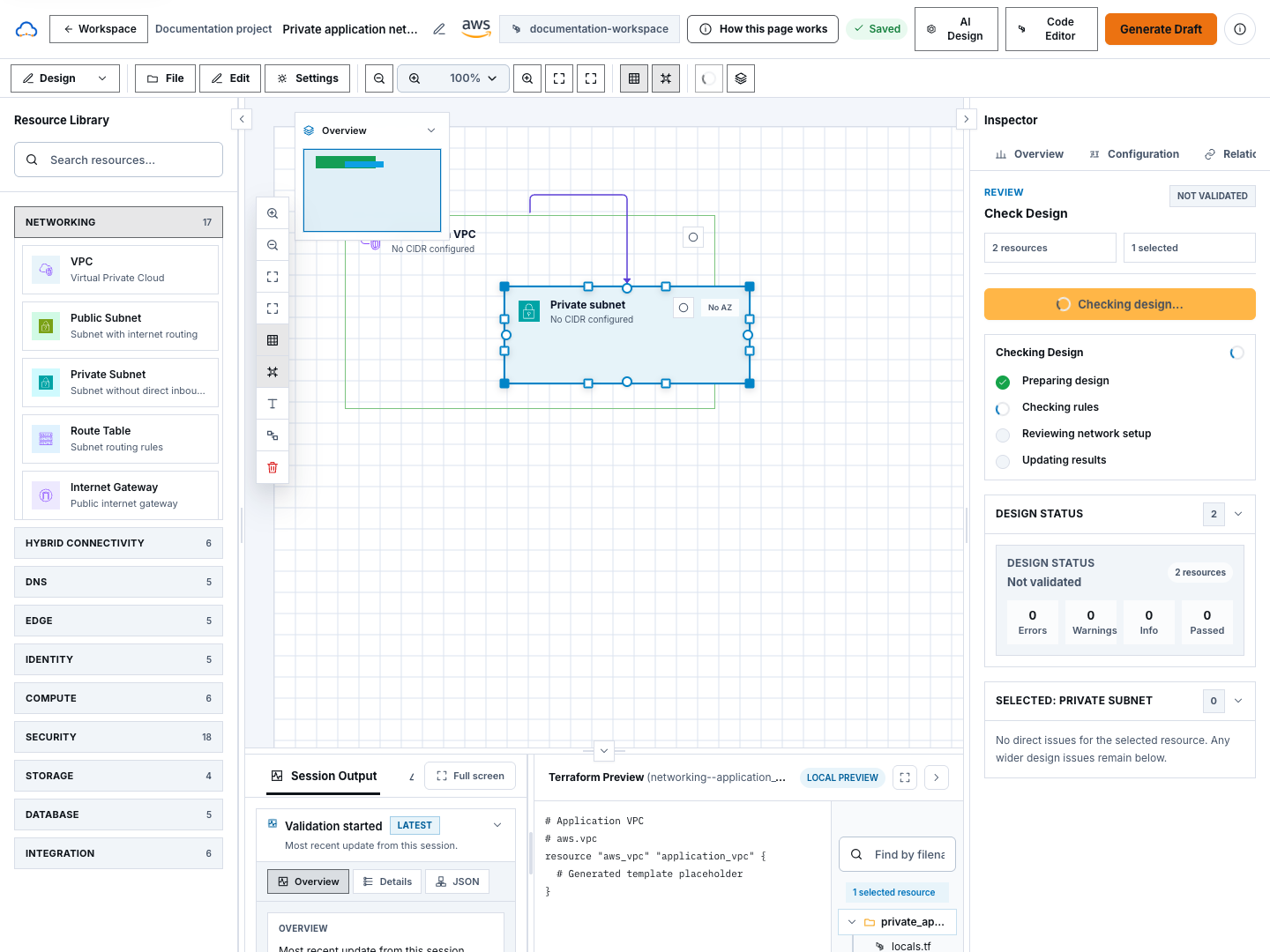
- Choose Generate Draft in the canvas header or Terraform area.
- Review any regeneration warning before continuing.
- Wait for the generated draft and workspace revision to finish.
- Choose Code Editor again.
If Generate Draft is missing or blocked, stop and report that exact control. Do not create substitute files merely to bypass the unavailable generation path.
Understand the editor layout
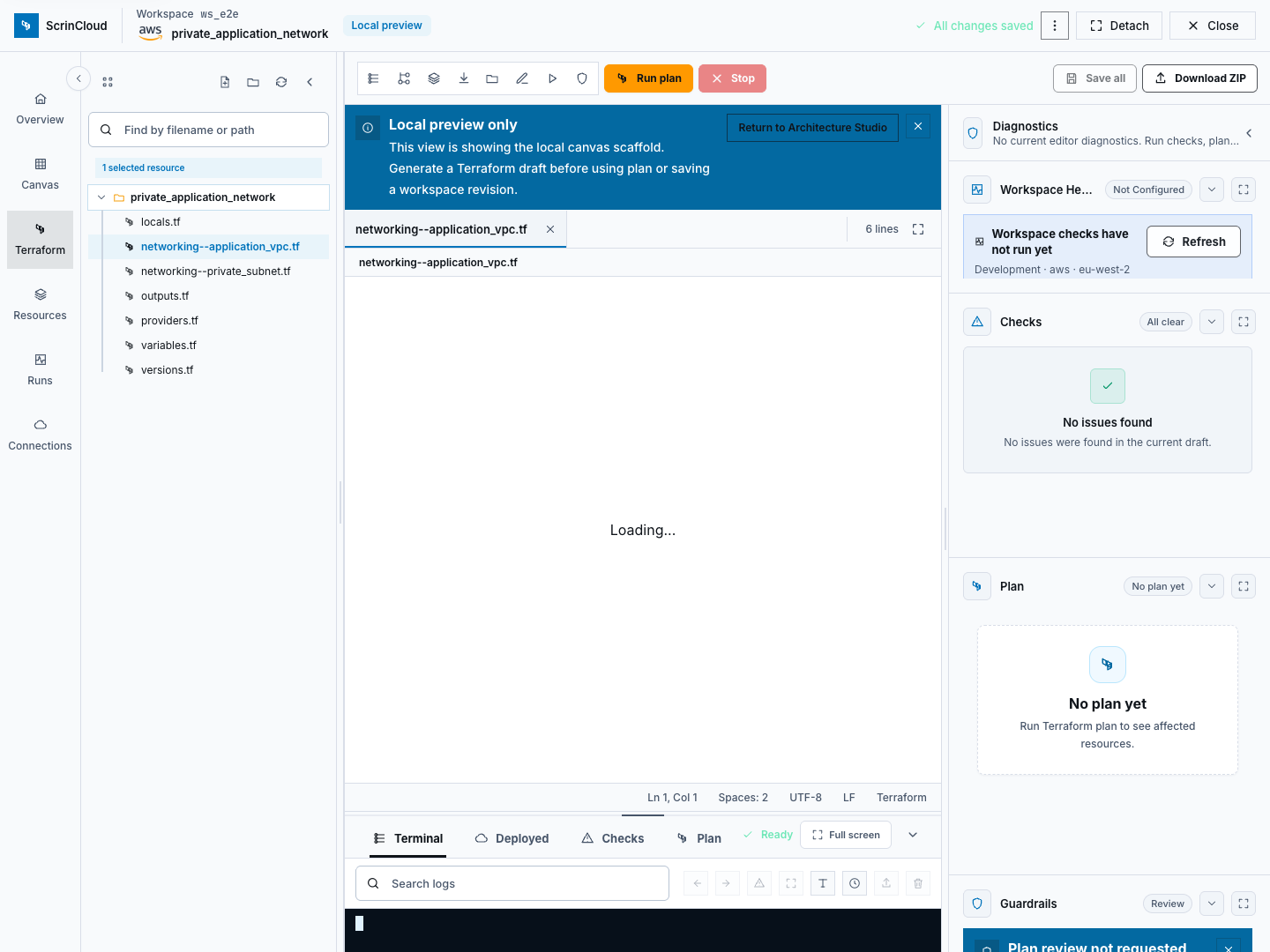
Section titled “Understand the editor layout”The expanded editor contains several coordinated areas:
- File browser: folders and files in the active workspace.
- Editor tabs: files currently open for review.
- Code editor: the selected file with line numbers and syntax highlighting.
- Problems or diagnostics: formatting, syntax, validation, and other findings.
- Terminal or run output: constrained workspace commands and their status.
- Governance and plan views: policy, cost, plan, health, and deployment evidence when available.
Select a file in the browser to open it. Common starter files describe required Terraform versions, providers, variables, and generated resources.
Review files before editing
Section titled “Review files before editing”For each file:
- Read the file name.
- Identify whether it contains versions, provider configuration, variables, resources, outputs, or supporting metadata.
- Look for unexpected provider, region, account, backend, or resource changes.
- Check the Problems area for diagnostics.
- Compare generated resources with the saved canvas.
- Ask a Terraform reviewer before changing code you do not understand.
Never add these values
Section titled “Never add these values”- cloud access keys or secret keys;
- passwords or private keys;
- session, OAuth, or API tokens;
- Terraform state or plan binary data;
- customer secrets or production records; or
- unreviewed provider backend credentials.
Use approved variables and secret references instead of literal secrets.
Make a small, reviewable edit
Section titled “Make a small, reviewable edit”Skip this section if you are not authorized to edit Terraform.
- Select the intended
.tffile. - Make one small change, such as improving a safe description or an approved tag.
- Check the tab or file indicator for an unsaved change.
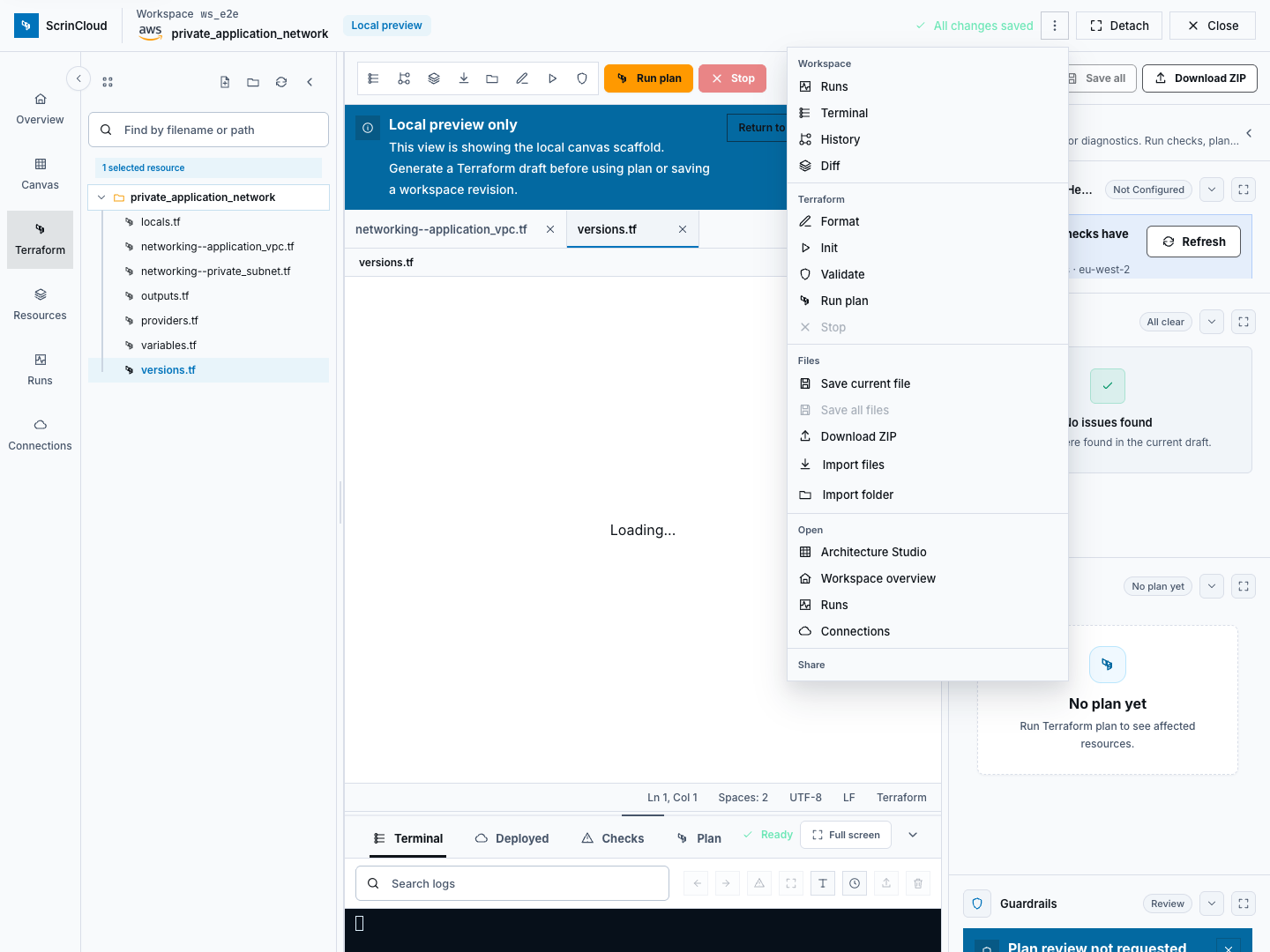
- Open File and choose Save, or use Ctrl+S.
- Use Save All only after reviewing every changed file.
- Wait for the save action to finish.
If the workspace is read-only or locked, do not copy files elsewhere to bypass the control. Ask the workspace owner to resolve the access or lock state.
Save a workspace revision
Section titled “Save a workspace revision”A saved workspace revision records a durable version that can be reviewed, compared, and restored.
- Save the current file or all intended files.
- Confirm no unexpected files remain dirty.
- Open revision history when you need to compare with an earlier version.
- Review changed-file and diff information before restoring or replacing content.
- Keep the current workspace context visible during review.
Saving is not a Terraform apply. It changes the workspace source revision, not the cloud environment.
Run safe checks
Section titled “Run safe checks”Run checks in this order:
- Format to normalize supported Terraform formatting.
- Init to perform the product’s bounded static initialization.
- Validate to check Terraform structure and configuration.
- Run plan only when the workspace, provider connection, permissions, and approval path are correct.
- Review policy and governance evidence produced for the plan when it is available.
There is no separate Policy check action in the editor toolbar. Policy evidence belongs to the governed plan and review flow.
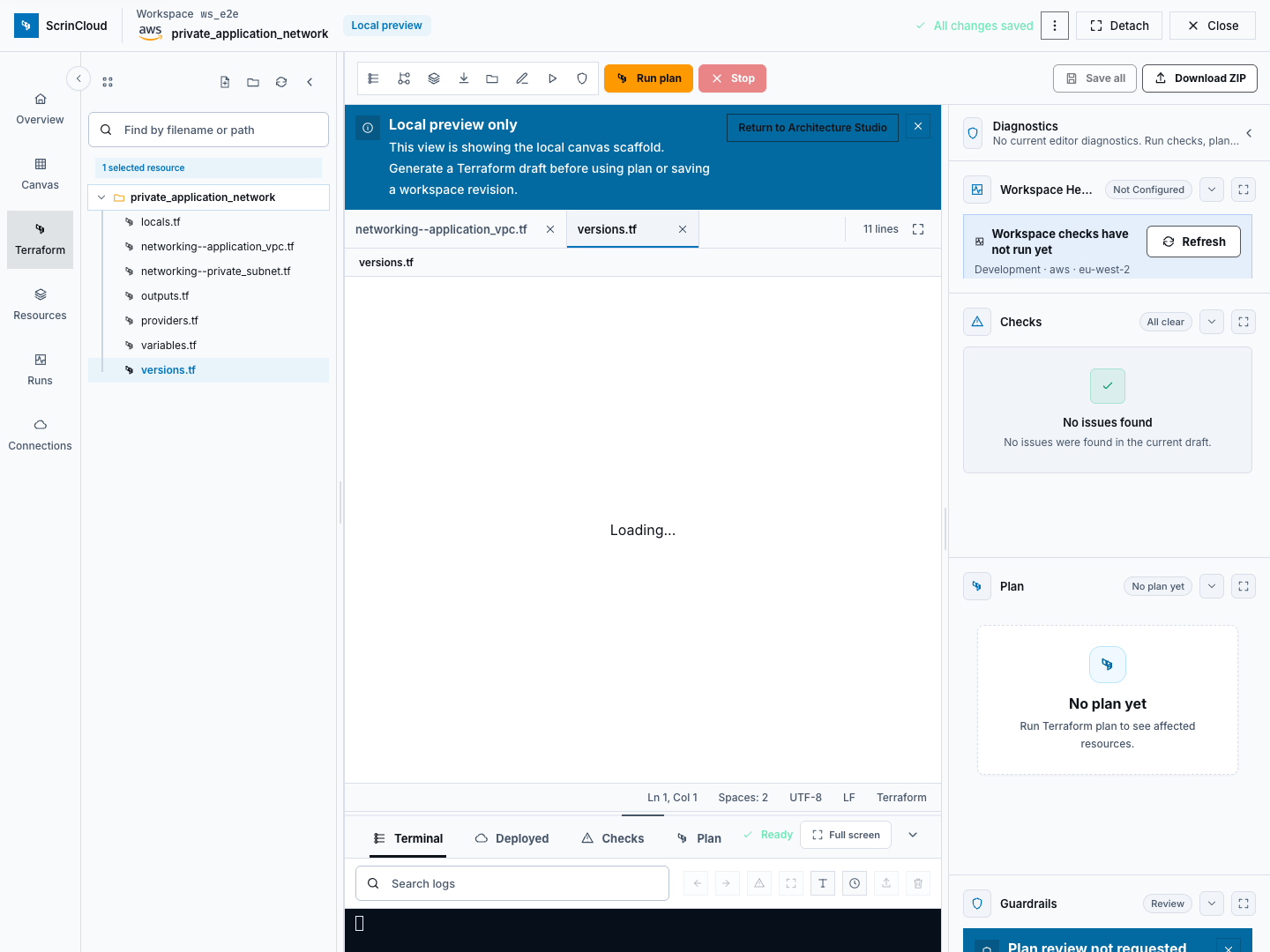
The product terminal accepts a bounded command set and blocks arbitrary shell execution and apply commands. Use the product actions or autocomplete rather than pasting shell commands from an untrusted source.
Review a plan without applying
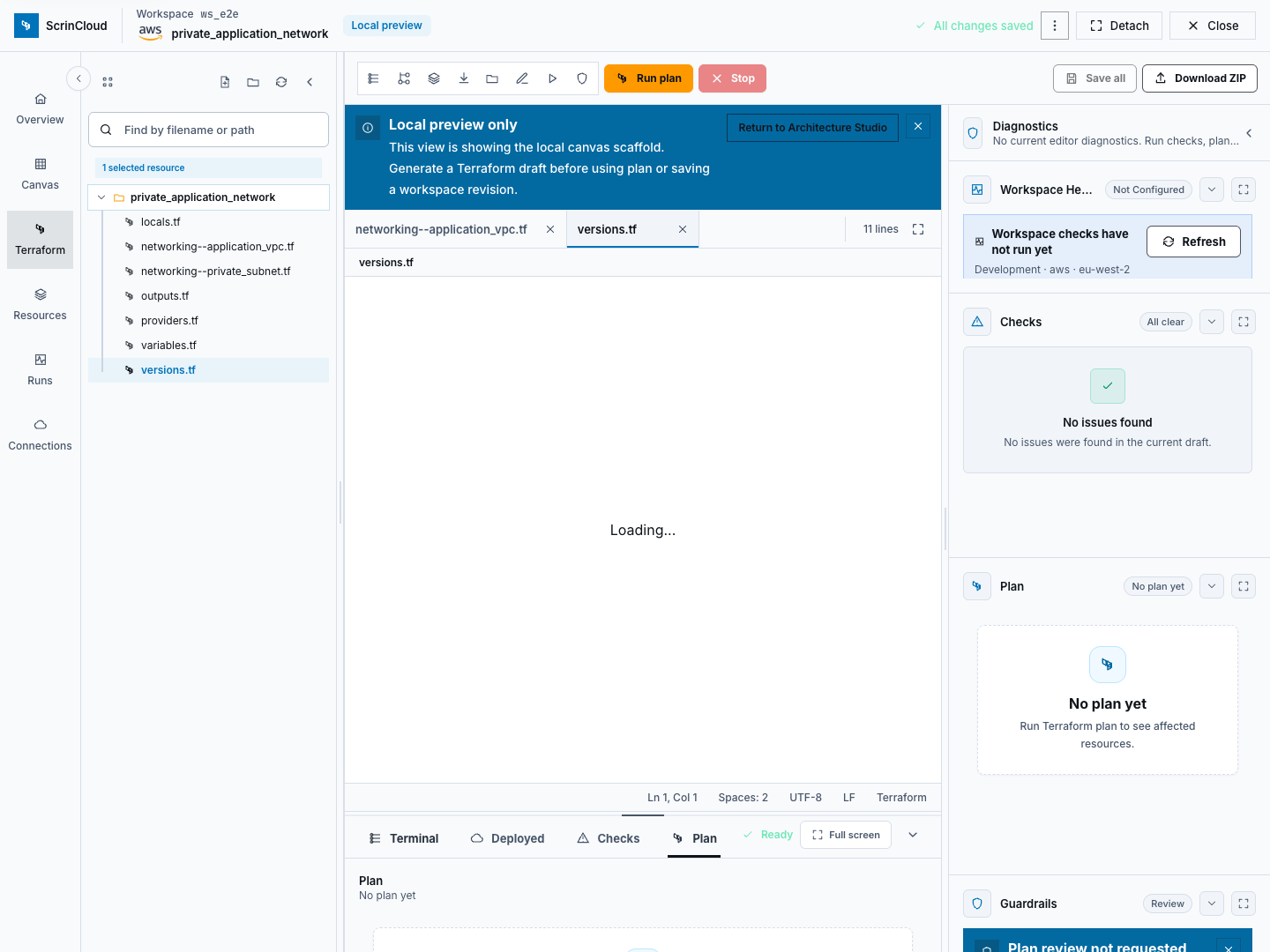
Section titled “Review a plan without applying”This section is environment-dependent. Continue only when Run plan is visible and enabled and its preflight confirms the required connection and permissions.
Create or open a plan only after confirming:
- organization, project, workspace, and environment;
- provider connection, account or subscription, and region;
- saved Terraform revision;
- active policy settings;
- reviewer and approval requirements; and
- expected cost context.
Then review:
- resources to create;
- in-place updates;
- replacements;
- deletions;
- provider or backend changes;
- security and public-access changes;
- cost changes; and
- policy findings or required exceptions.
If source code changes after approval, create and review a new plan. Approval for one revision does not carry to another.
Keep canvas and code aligned
Section titled “Keep canvas and code aligned”If code changes should update the visual design:
- use the code-to-canvas preview action;
- review every proposed create, update, or delete;
- resolve warnings and unsupported resources;
- apply the preview to the canvas only when it matches your intent;
- save the diagram; and
- run Architecture Validation again.
Code-to-canvas sync is a reviewed preview flow. It should not silently mutate the saved canvas.
Check your result
Section titled “Check your result”The beginner journey is complete when:
- the editor is attached to the intended workspace;
- the file source is understood;
- files contain no secrets or state;
- the intended revision is saved;
- any available formatting and validation actions have completed;
- policy findings are understood when governance evidence is available;
- any available plan has been reviewed without assuming approval; and
- no apply or deployment was started.
Common blockers
Section titled “Common blockers”Code Editor is disabled
Section titled “Code Editor is disabled”The active project does not have a linked Terraform workspace. Return to Set up a workspace.
The workspace is empty
Section titled “The workspace is empty”Choose one of the first-use actions. For this journey, return to the saved canvas and use Generate from Architecture Studio.
Save is disabled
Section titled “Save is disabled”The file may be unchanged, the workspace may be read-only or locked, or another save may be running. Read the visible status before retrying.
Plan is unavailable
Section titled “Plan is unavailable”The workspace may need a saved revision, valid files, provider connection, permissions, or policy prerequisites. Do not add broad credentials to bypass the preflight. If Run plan is absent in the deployed editor, record the availability blocker and stop; do not run Terraform from another surface as a substitute.
Validation passes but policy fails
Section titled “Validation passes but policy fails”Terraform validity and policy compliance are different checks. Read the policy finding, fix the configuration when practical, or use the configured exception and review path.
Where to go next
Section titled “Where to go next”- Learn the complete Terraform workflow.
- Use the Terraform plan review checklist.
- Learn how policies and approvals govern delivery.
- Return to Start with ScrinCloud to verify the completion checklist.