
Sign in with two-factor
Sign-in begins with email and password. When policy or account configuration requires another factor, ScrinCloud creates a short-lived challenge and shows only the methods available for that challenge.
- Typical time
- 2–5 minutes
- You need
- Password and an enrolled method
- Outcome
- An authenticated browser session
Sign in with a password
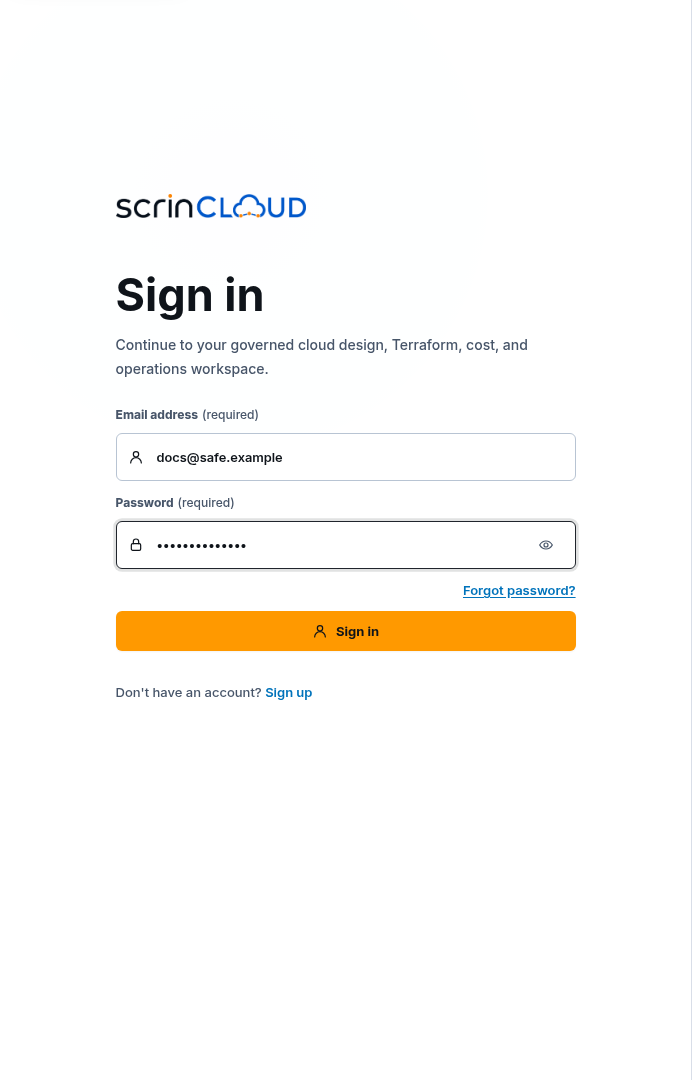
Section titled “Sign in with a password”- Open Sign in.
- Enter Email address and Password.
- Choose Sign in once and wait for Signing in….
- If no second factor is required, wait for Signing you in to open the validated return destination.
- Use Forgot password? only when you cannot authenticate with the password.
- Choose Sign up only when you do not already have an account.
Check your result
Section titled “Check your result”ScrinCloud either opens the intended public product destination or shows Verify sign-in / Set up 2FA. A loading transition is not proof of an authenticated session; the destination must load successfully.
Choose a two-factor method
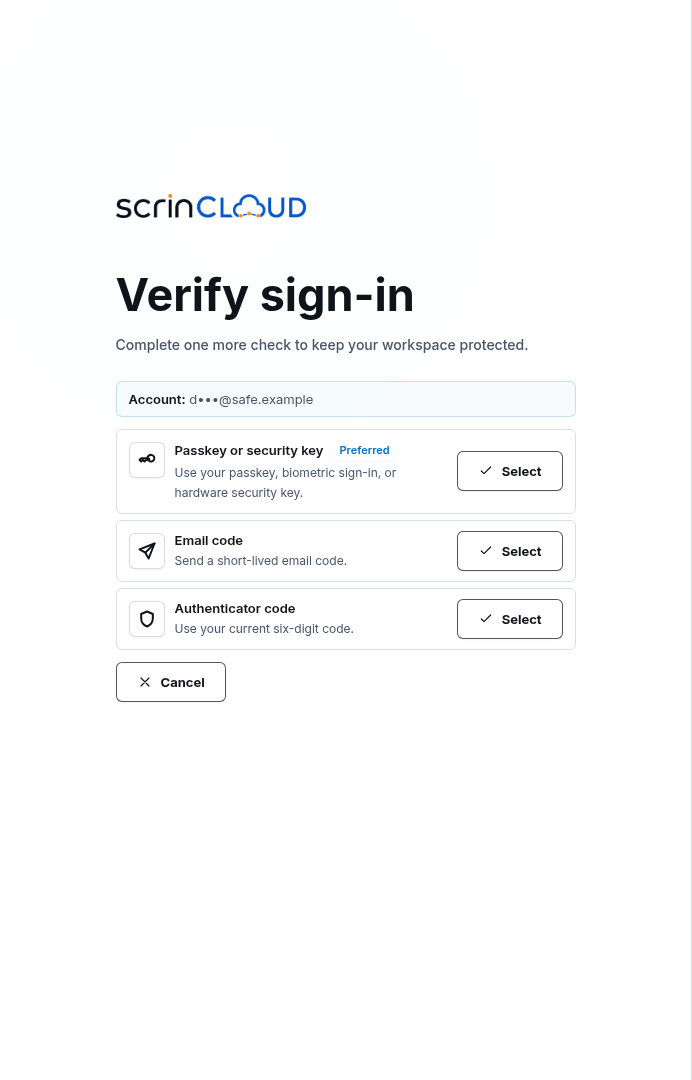
Section titled “Choose a two-factor method”- Confirm the masked Account is yours.
- Review the methods offered for this challenge:
- Email code
- Authenticator code or Authenticator app
- Recovery code
- Passkey or security key
- Prefer the method marked Preferred when you can use it.
- Choose Select.
- Choose Change method to return to the method list.
Only the backend decides which methods are available. Do not try to add a query parameter or reuse a challenge from another sign-in.
Use an email or authenticator code
Section titled “Use an email or authenticator code”Email code
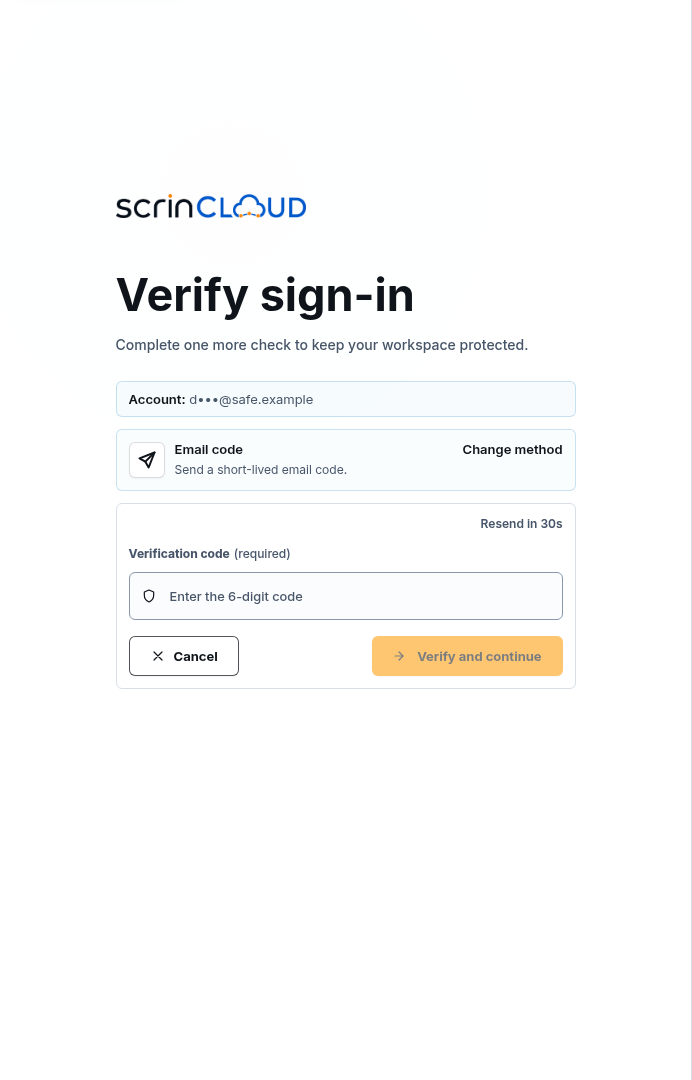
Section titled “Email code”- Select Email code.
- Choose Send code if a code was not sent automatically.
- Enter the six-digit Verification code.
- When the timer finishes, choose Resend code only if necessary.
- Choose Verify and continue.
Authenticator code
Section titled “Authenticator code”- Select Authenticator code.
- Open your enrolled authenticator app.
- Enter the current six-digit Authenticator code.
- Choose Verify and continue before the code changes.
Use a recovery code
Section titled “Use a recovery code”- Select Recovery code only when normal methods are unavailable.
- Enter one unused Recovery code.
- Choose Use recovery code.
- After signing in, regenerate recovery codes and review your active methods.
A recovery code is a one-time secret. Using it consumes it. Never send it to support or store it in the ScrinCloud UI.
Use a passkey or security key
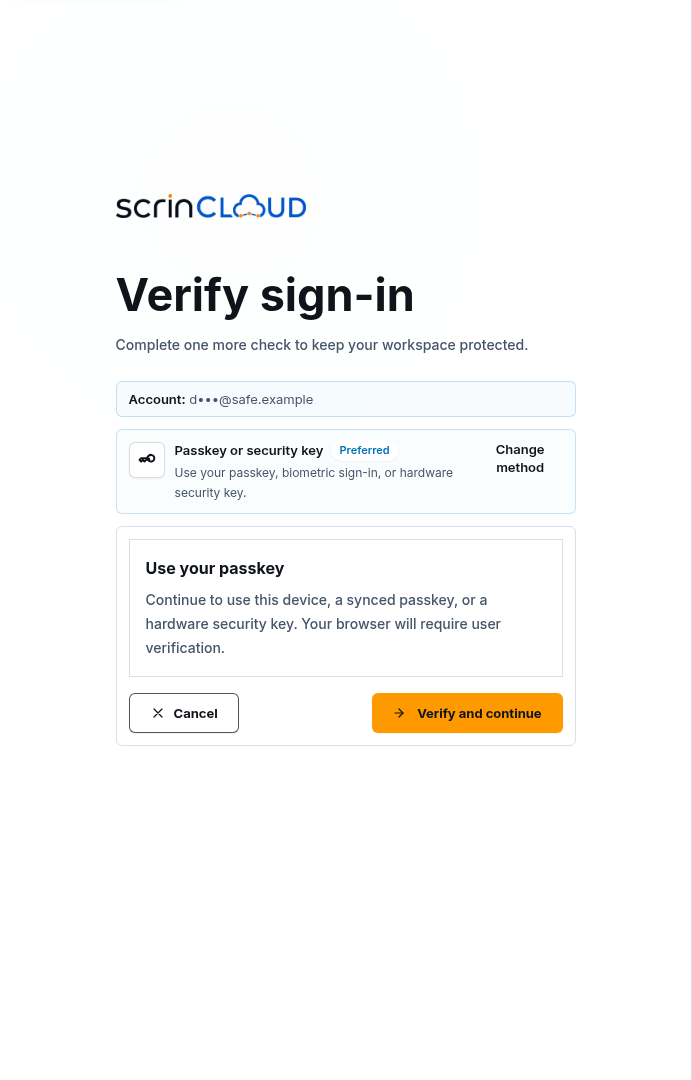
Section titled “Use a passkey or security key”- Select Passkey or security key.
- Choose Verify and continue.
- Complete the browser or operating-system prompt with the expected device, synced passkey, biometric check, or hardware key.
- Cancel the browser prompt if the displayed account or device is unfamiliar.
ScrinCloud verifies the signed browser credential on the backend. The documentation never needs the credential payload.
Complete required authenticator enrollment
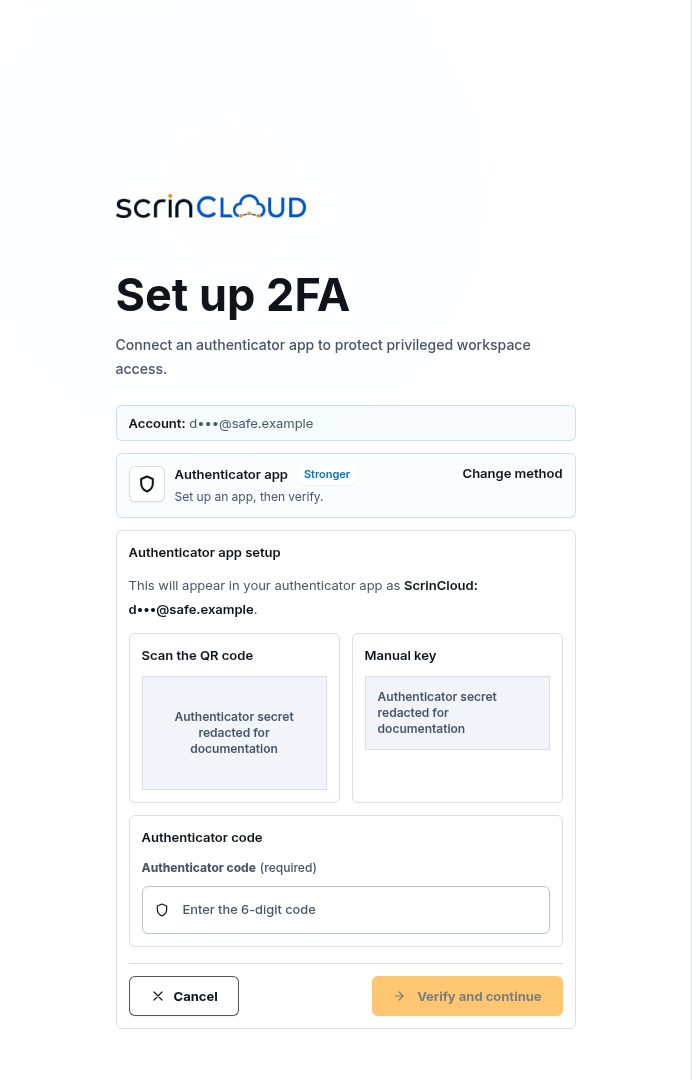
Section titled “Complete required authenticator enrollment”When policy requires enrollment, the page title is Set up 2FA.
- Select Authenticator app.
- Scan the Authenticator setup QR code with your app, or use Copy authenticator manual key privately.
- Enter the current Authenticator code.
- Choose Verify and continue.
- Save newly issued recovery codes privately after sign-in.
The QR code, manual key, and otpauth value are secrets. Never screenshot or
share them.
Cancel sign-in
Section titled “Cancel sign-in”Choose Cancel to send a challenge-cancellation request and return to Sign in. If the challenge already expired or was consumed, ScrinCloud still returns to sign-in only when that failure is safe. Start again rather than reusing the old page.
Common blockers
Section titled “Common blockers”The sign-in step is missing or unavailable
Section titled “The sign-in step is missing or unavailable”Return to Sign in and start again. Do not reconstruct challenge parameters.
Email resend is waiting
Section titled “Email resend is waiting”Wait for the visible countdown. Repeated attempts can trigger rate limiting.
Authenticator codes keep failing
Section titled “Authenticator codes keep failing”Confirm the correct account entry and device time. Use another offered method or verified recovery; never lower security settings to bypass the challenge.
The passkey prompt does not appear
Section titled “The passkey prompt does not appear”Confirm the browser and device support passkeys, then retry once from a fresh sign-in. Use another offered method if available.
All factors are unavailable
Section titled “All factors are unavailable”Stop guessing. Use your organization’s verified identity-recovery process.